> ## Documentation Index
> Fetch the complete documentation index at: https://rive-transitions-2.mintlify.site/llms.txt
> Use this file to discover all available pages before exploring further.
# Binding Data
> Binding is how you connect data to properties and elements in your Rive file.
export const UseCase = ({title, children}) => {
return ;
};
export const YouTube = ({id, timestamp}) => {
const videoSrc = timestamp ? `https://www.youtube.com/embed/${id}?start=${timestamp}` : `https://www.youtube.com/embed/${id}`;
return ;
};
For example, if you have a `teamName` property bound to a text run in your scene, changing the `teamName` value updates the displayed text automatically.
You can change property values in the editor or at runtime, allowing you to create dynamic experiences that adapt to each user.
Bindings are not limited to visual properties. You can bind values throughout your file, including transforms, animation speeds, [converter values](/editor/data-binding/converters#converter-types), [script inputs](/scripting/script-inputs#data-binding-inputs), [transition condition values](/editor/state-machine/transitions), and more.
This allows the same data to drive behavior, animation, and logic across your scene, helping keep everything in sync.
## Binding a Property
Let's control the `X` position of a circle using `circleX`, which is a Number property in our View Model.
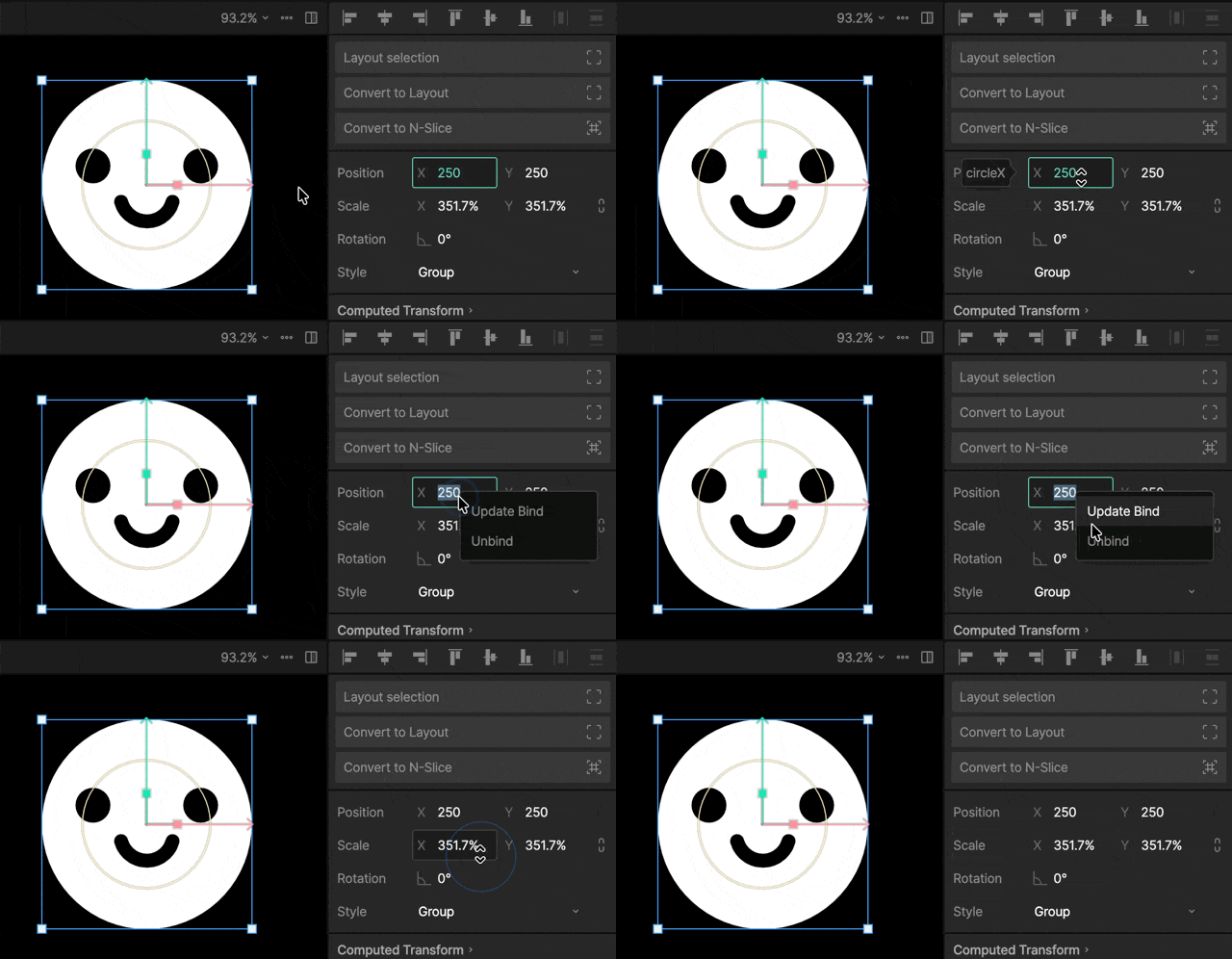
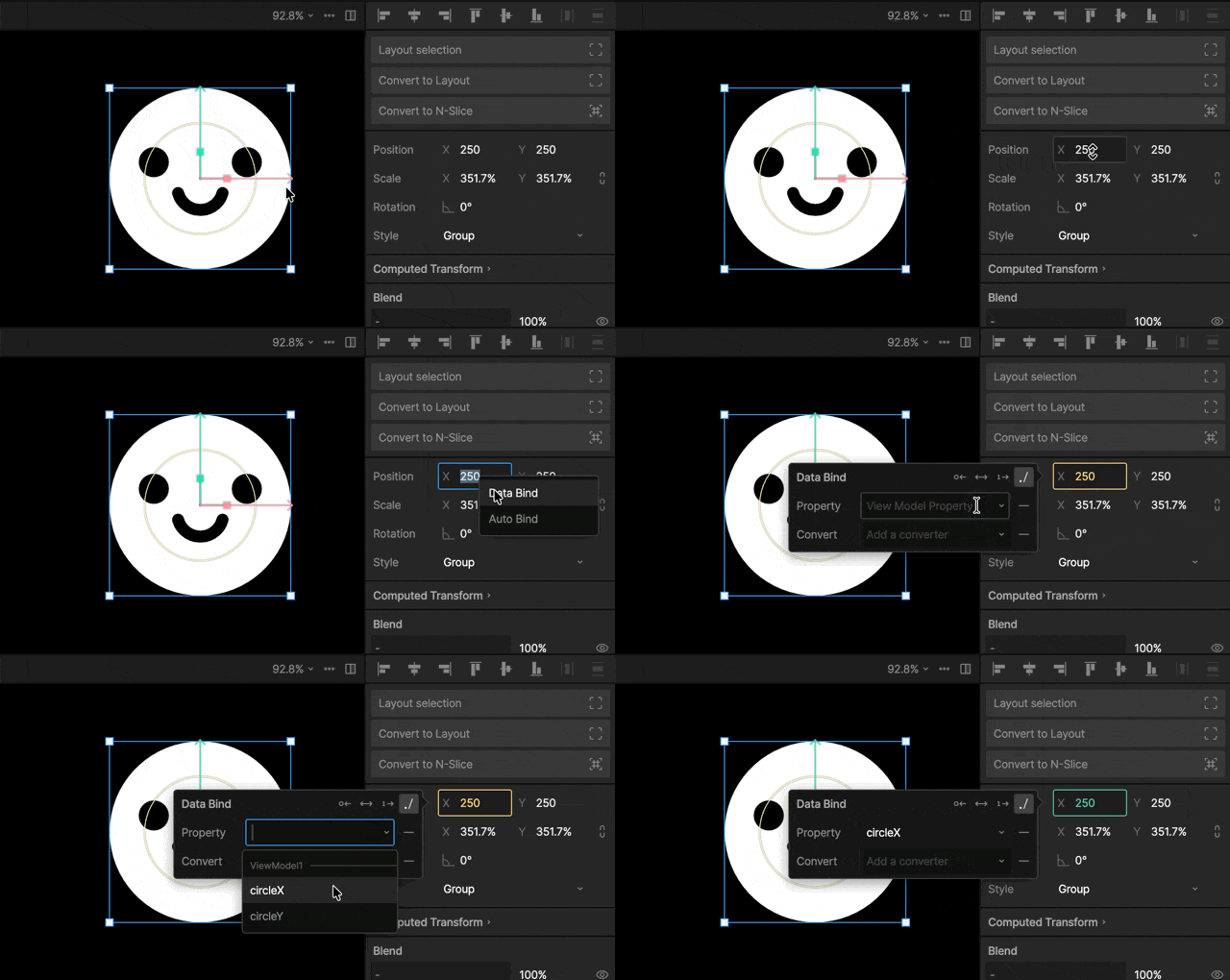 With your circle selected, right-click the `X` field, and select **Data Bind**.
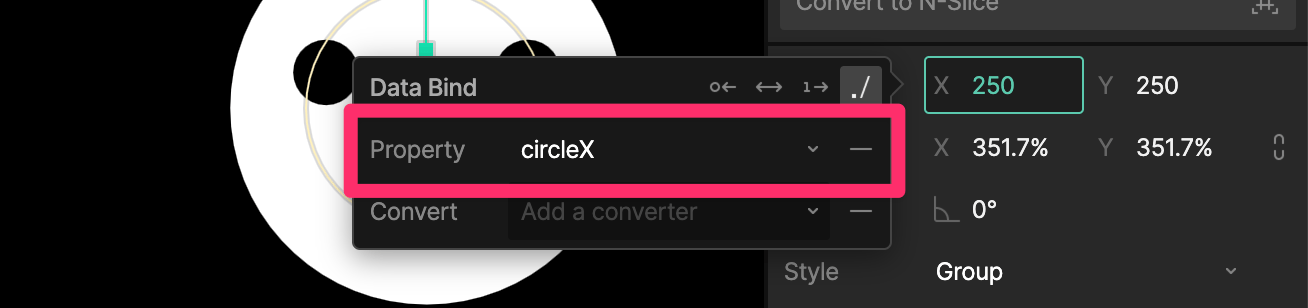
In the **Property** dropdown, select `circleX`.
The `X` field should now be highlighted in green, indicating that it's bound to a value.
The circle's horizontal position is now driven by the `circleX` property. Any time the property's value changes, the circle updates automatically.
With your circle selected, right-click the `X` field, and select **Data Bind**.
In the **Property** dropdown, select `circleX`.
The `X` field should now be highlighted in green, indicating that it's bound to a value.
The circle's horizontal position is now driven by the `circleX` property. Any time the property's value changes, the circle updates automatically.
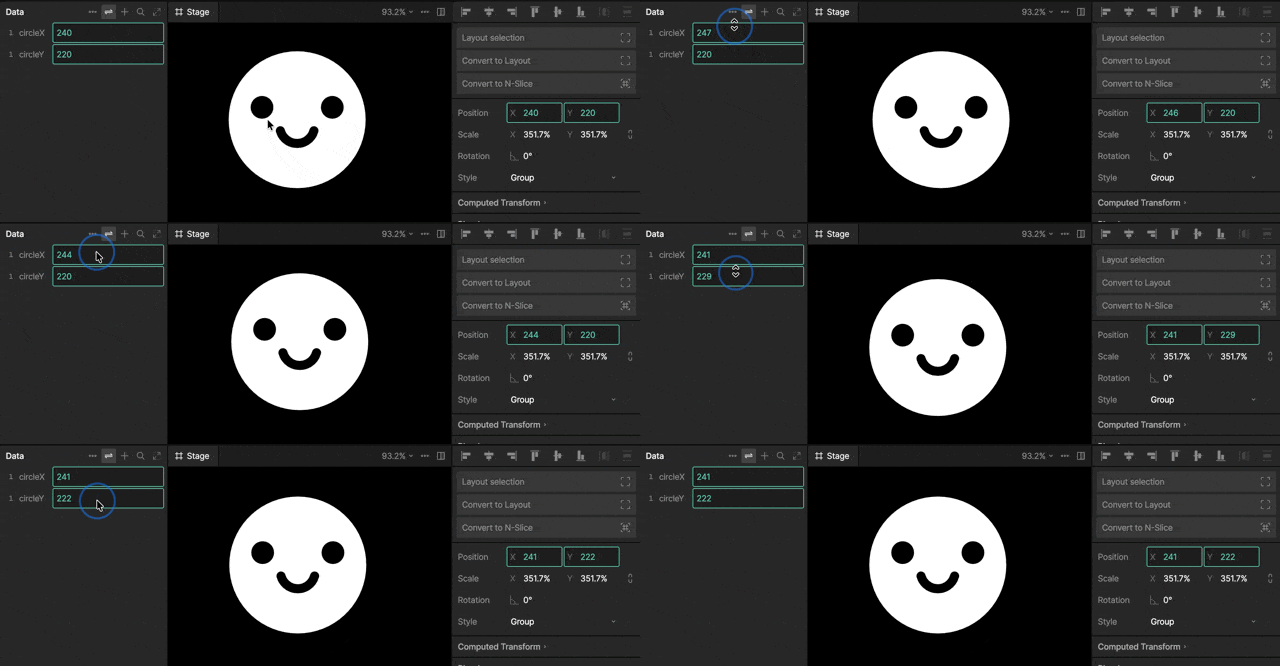 If the field has a yellow border, there is a problem with the binding.
In most cases, the property type is incompatible with the target value. For example, the `X` position of an element can only be bound to a Number property.
**Previewing Bindings**
By default, your data only controls your elements when the state machine is playing.
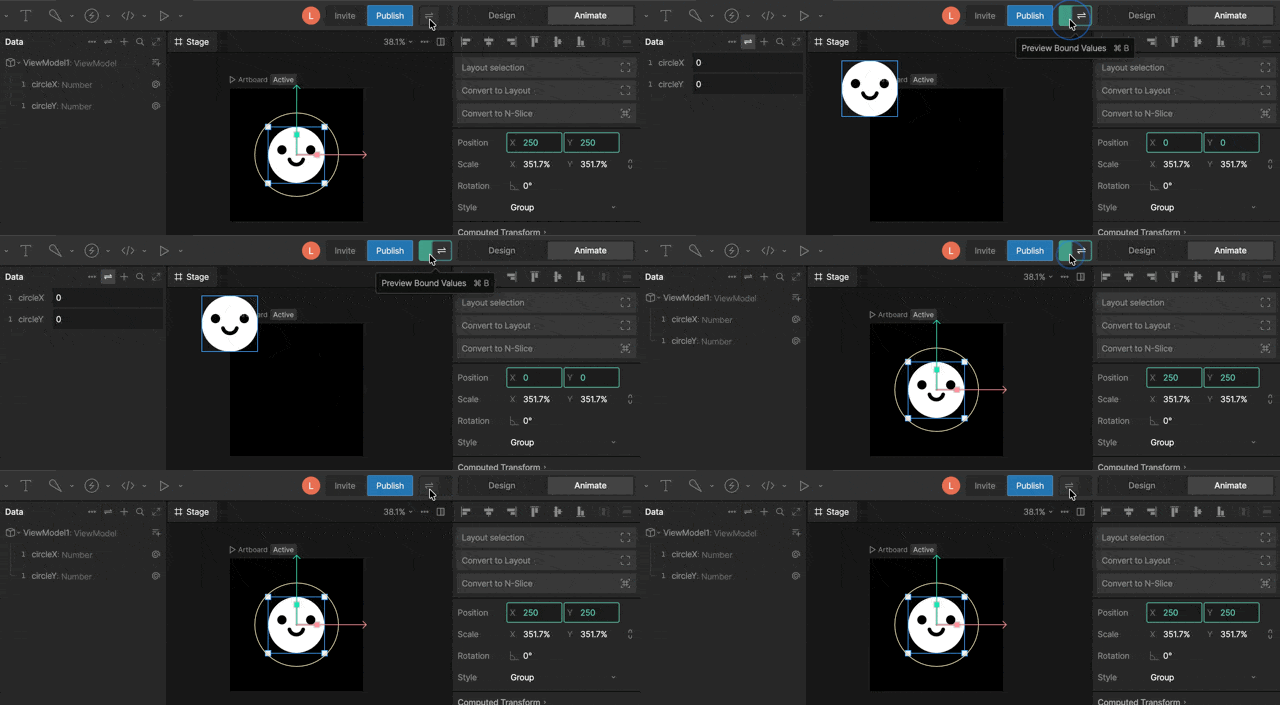
To preview your data-bound values, turn on the **Data Binding Preview Toggle**.
If the field has a yellow border, there is a problem with the binding.
In most cases, the property type is incompatible with the target value. For example, the `X` position of an element can only be bound to a Number property.
**Previewing Bindings**
By default, your data only controls your elements when the state machine is playing.
To preview your data-bound values, turn on the **Data Binding Preview Toggle**.
 ### Updating a Binding
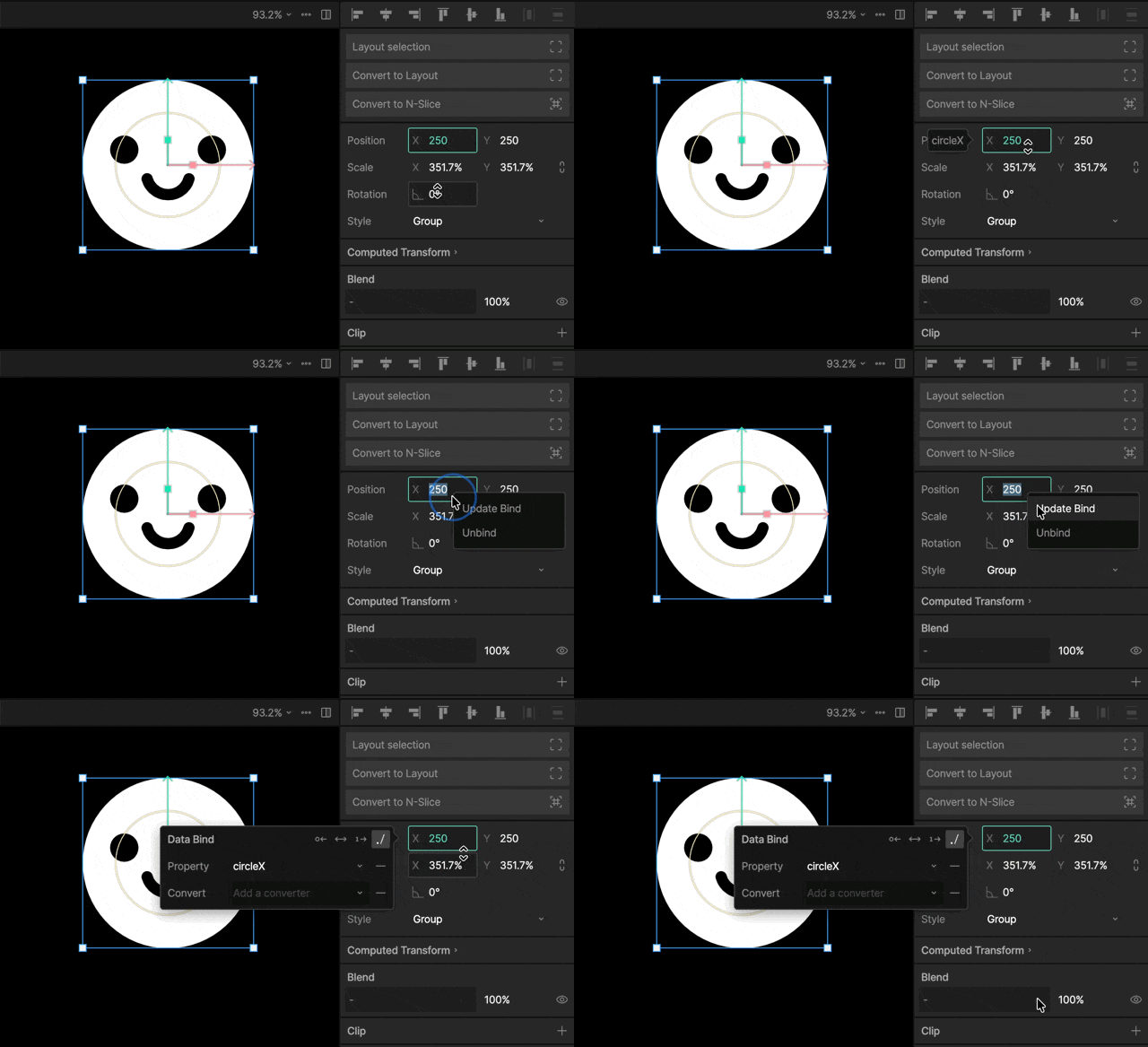
Right-click the bound element and select **Update Bind**.
### Updating a Binding
Right-click the bound element and select **Update Bind**.
 ### Removing a Binding
Right-click the bound element and select **Unbind**.
### Removing a Binding
Right-click the bound element and select **Unbind**.
 ## Binding Options
Each binding has the following properties.
### Property
The View Model property the target is connected to.
## Binding Options
Each binding has the following properties.
### Property
The View Model property the target is connected to.
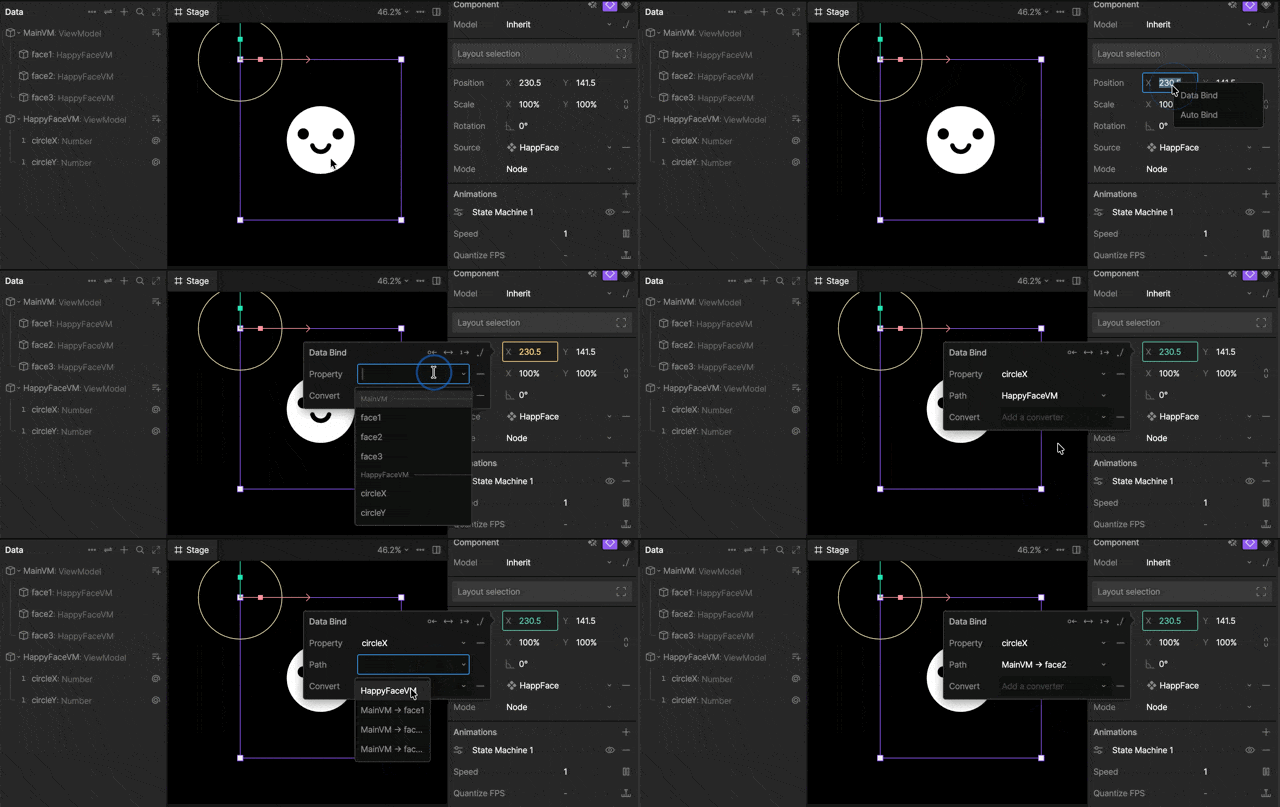
 ### Path
When binding to nested View Models, there may be multiple properties with the same name available.
The path determines which specific property instance the binding should use.
### Path
When binding to nested View Models, there may be multiple properties with the same name available.
The path determines which specific property instance the binding should use.
 See also [Absolute vs Relative Binding](#absolute-vs-relative-binding).
### Bind Direction
By default, the View Model property (**source**) controls the bound element or value (**target**), but it can also work the other way around.
#### Target to Source
When a binding has `Target to Source` toggled on, a change to the element will update the view model property.
See also [Absolute vs Relative Binding](#absolute-vs-relative-binding).
### Bind Direction
By default, the View Model property (**source**) controls the bound element or value (**target**), but it can also work the other way around.
#### Target to Source
When a binding has `Target to Source` toggled on, a change to the element will update the view model property.
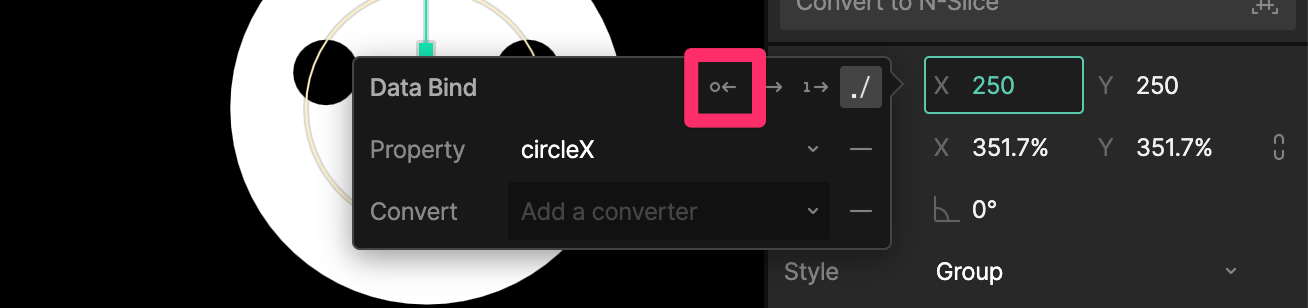 Let's say you have a walk cycle animation and you want to track the exact Y position of the head as it bobs up and down.
With the head's `Y` position bound to `headY` using **Target to Source**, the `headY` property updates automatically as the head moves.
#### Bidirectional
A change to the view model property will update the element **AND** a change to the element will update the view model property.
Let's say you have a walk cycle animation and you want to track the exact Y position of the head as it bobs up and down.
With the head's `Y` position bound to `headY` using **Target to Source**, the `headY` property updates automatically as the head moves.
#### Bidirectional
A change to the view model property will update the element **AND** a change to the element will update the view model property.
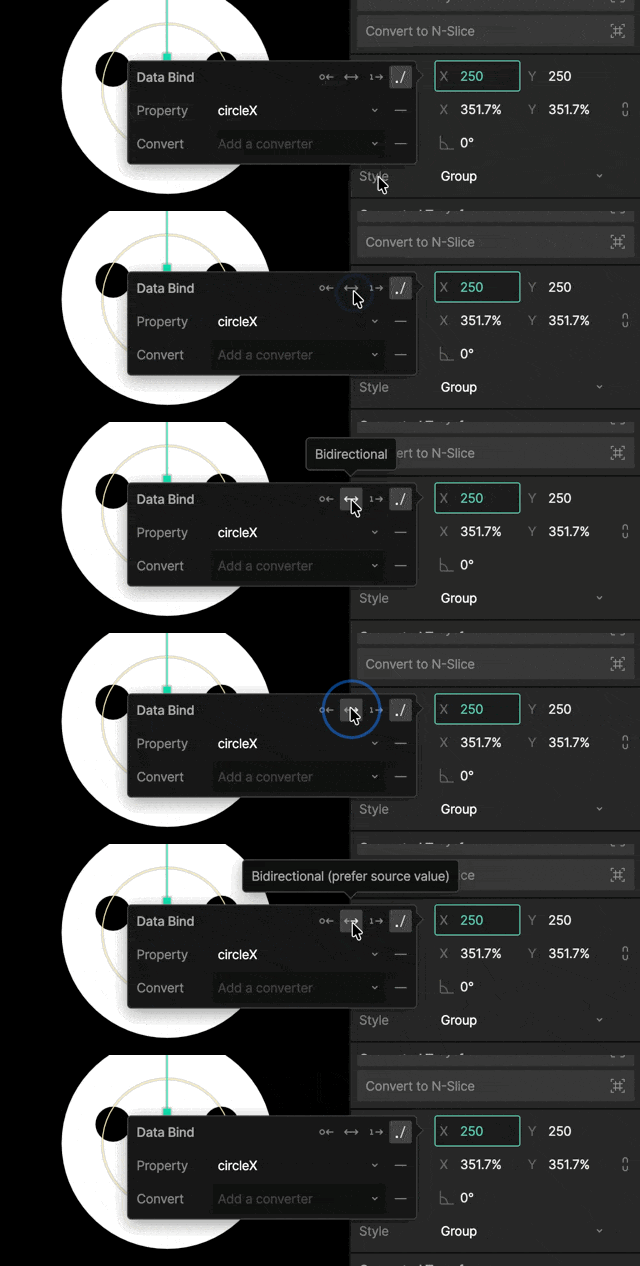 Clicking the **Bidirectional** toggle multiple times will cycle between **Bidirectional (prefer target value)** and **Bidirectional (prefer source value)**.
In rare cases, both the source and target may change at the same time. This setting determines which value wins when a conflict occurs.
Let's say you're building a game of checkers and need to create logic for dragging and dropping each piece.
The initial position of each piece is determined by the `piecePositionX` and `piecePositionY` properties (source to target).
As the piece is dragged, the piece itself (target) updates those property values (target to source).
### Bind Once
When **Bind Once** is enabled, the binding only applies the value a single time when the scene starts or the binding is created.
Clicking the **Bidirectional** toggle multiple times will cycle between **Bidirectional (prefer target value)** and **Bidirectional (prefer source value)**.
In rare cases, both the source and target may change at the same time. This setting determines which value wins when a conflict occurs.
Let's say you're building a game of checkers and need to create logic for dragging and dropping each piece.
The initial position of each piece is determined by the `piecePositionX` and `piecePositionY` properties (source to target).
As the piece is dragged, the piece itself (target) updates those property values (target to source).
### Bind Once
When **Bind Once** is enabled, the binding only applies the value a single time when the scene starts or the binding is created.
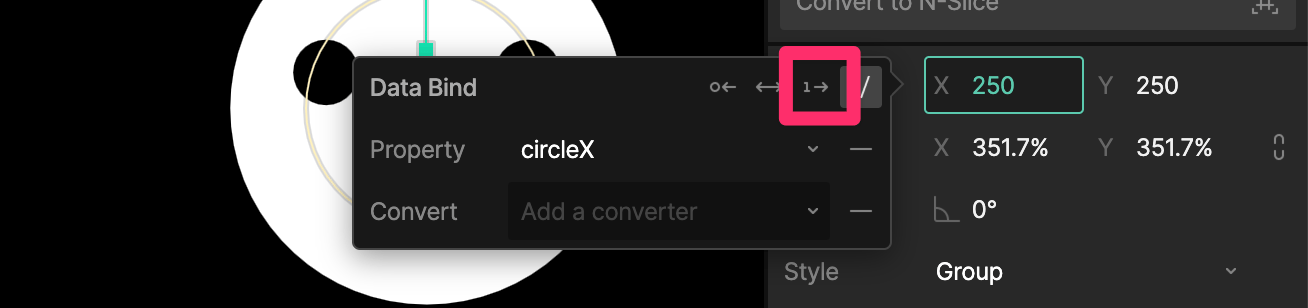 After the initial value is applied, future changes to the source or target are ignored.
Let's say you're creating a particle effect and want each particle to start with a random rotation value.
You could bind the particle's rotation to a random number property using **Bind Once**. Each particle would receive its initial rotation value, but future changes to the property would not affect existing particles.
### Absolute vs Relative Binding
By default, new data binding connections are created as absolute binds.
* **Absolute Binding**: The binding points to a specific property instance within the View Model hierarchy.
* **Relative Binding**: The binding searches for a property with a matching name relative to the current context.
After the initial value is applied, future changes to the source or target are ignored.
Let's say you're creating a particle effect and want each particle to start with a random rotation value.
You could bind the particle's rotation to a random number property using **Bind Once**. Each particle would receive its initial rotation value, but future changes to the property would not affect existing particles.
### Absolute vs Relative Binding
By default, new data binding connections are created as absolute binds.
* **Absolute Binding**: The binding points to a specific property instance within the View Model hierarchy.
* **Relative Binding**: The binding searches for a property with a matching name relative to the current context.