> ## Documentation Index
> Fetch the complete documentation index at: https://rive-transitions-2.mintlify.site/llms.txt
> Use this file to discover all available pages before exploring further.
# Enums
> Use enums to control states, modes, and variants by selecting from a predefined set of options.
export const YouTube = ({id, timestamp}) => {
const videoSrc = timestamp ? `https://www.youtube.com/embed/${id}?start=${timestamp}` : `https://www.youtube.com/embed/${id}`;
return ;
};
export const Marketplace = ({href, children}) => {
const hrefWithTracking = `${href}?utm_source=docs&utm_medium=docs_link_card&utm_campaign=docs_to_marketplace_links`;
return
{children ? children : "Open this file on Marketplace, then click Remix to experiment in the Rive Editor."}
;
};
An enum lets you choose one value from a predefined set of options.
Use enums when a property should only ever be one of a few known values—like modes, states, or variants—instead of allowing any arbitrary value like a string.
For example, instead of using a string like "left", "center", or "right", an enum guarantees the value is always one of those valid options.
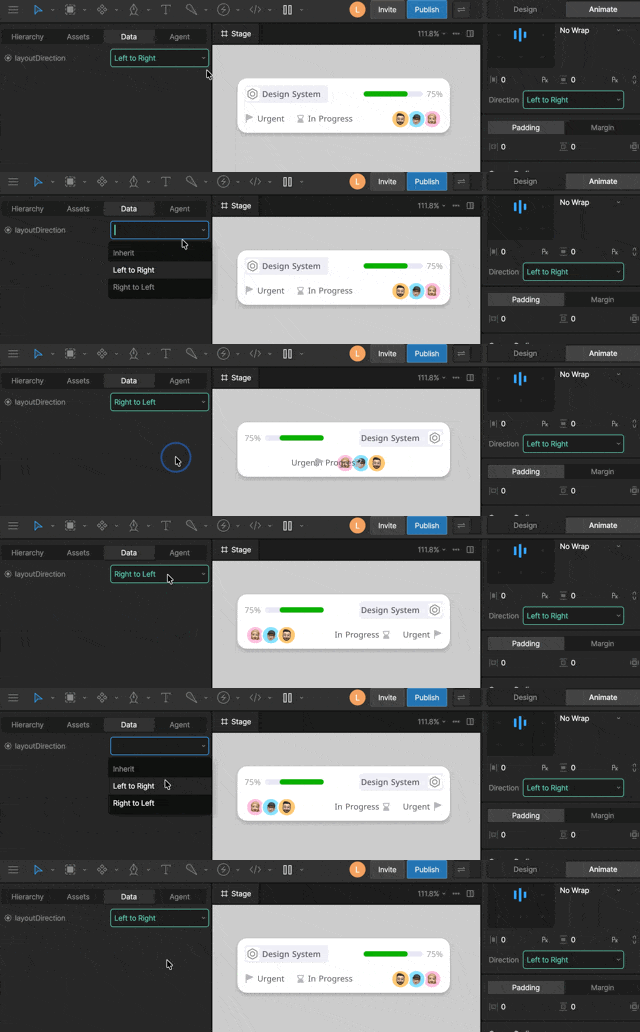 Enums can be:
* System enums — built-in sets of options used by the editor (for example, Horizontal Align)
* [Custom enums](#custom-enums) — your own defined sets of options for your specific use case
**Why not use strings or numbers?**
Imagine a calendar app that shows different backgrounds based on the day of the week.
You could use a string like "Monday", but it breaks if someone sets it to "Mon".
You could use a number, but it’s unclear whether the week starts on Sunday or Monday—or whether the index starts at 0 or 1.
With an enum, the value must be one of the defined options, so it’s always valid and unambiguous.
## Adding an enum property
Enums can be:
* System enums — built-in sets of options used by the editor (for example, Horizontal Align)
* [Custom enums](#custom-enums) — your own defined sets of options for your specific use case
**Why not use strings or numbers?**
Imagine a calendar app that shows different backgrounds based on the day of the week.
You could use a string like "Monday", but it breaks if someone sets it to "Mon".
You could use a number, but it’s unclear whether the week starts on Sunday or Monday—or whether the index starts at 0 or 1.
With an enum, the value must be one of the defined options, so it’s always valid and unambiguous.
## Adding an enum property
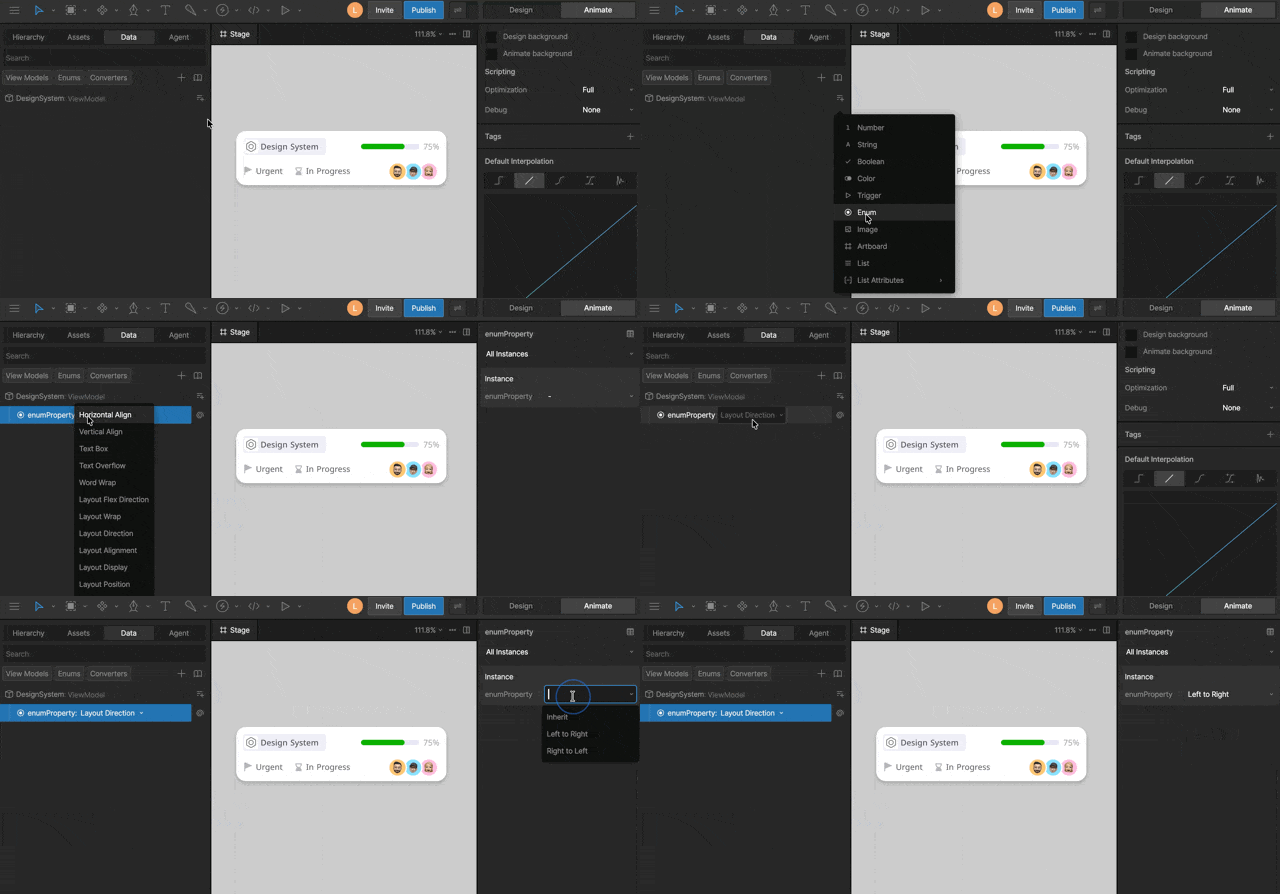 Create a new enum view model property inside your view model.
Click the dropdown next to the property name and select an enum type.
Select your enum view model property and in the right sidebar, select the default value.
## Binding enums
Create a new enum view model property inside your view model.
Click the dropdown next to the property name and select an enum type.
Select your enum view model property and in the right sidebar, select the default value.
## Binding enums
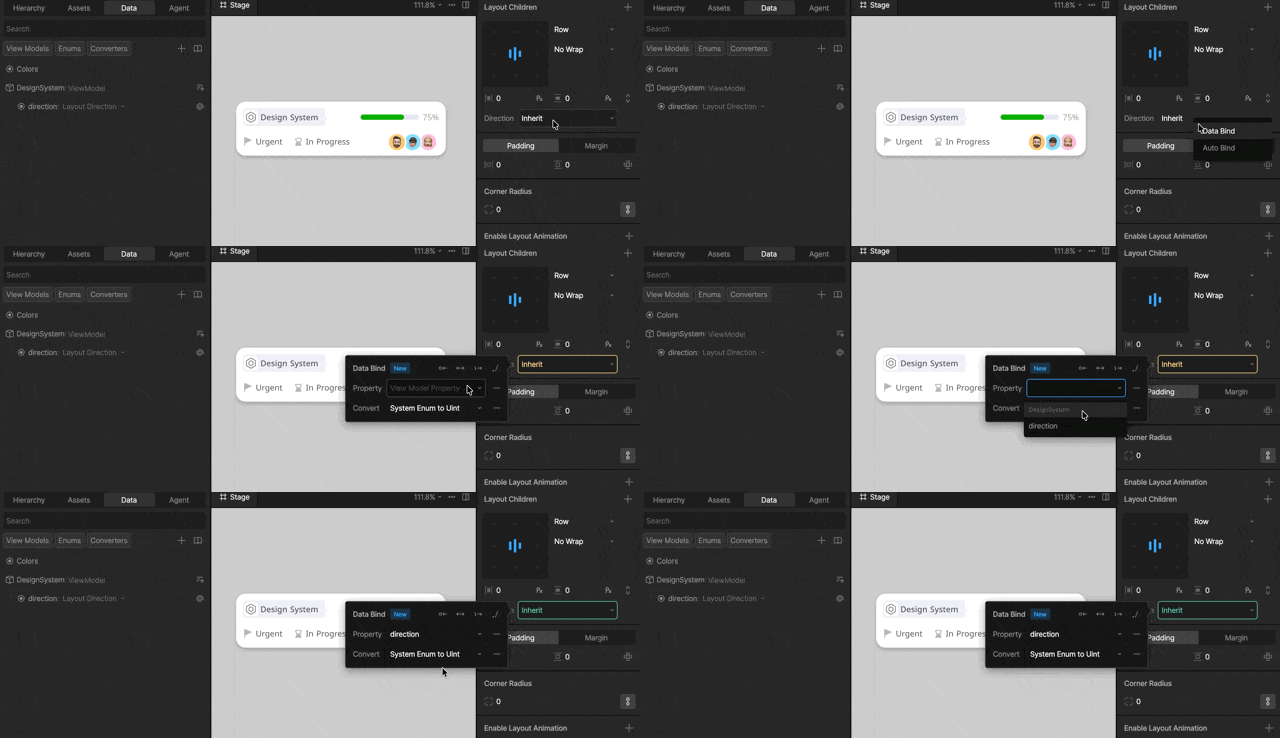 Enums can be bound to editor properties that use the same set of options. For example, an enum named “Layout Direction” can be bound to a layout’s Direction property.
When binding enums, the System Enum to Uint converter is required and is applied automatically.
## Custom enums
Enums can be bound to editor properties that use the same set of options. For example, an enum named “Layout Direction” can be bound to a layout’s Direction property.
When binding enums, the System Enum to Uint converter is required and is applied automatically.
## Custom enums
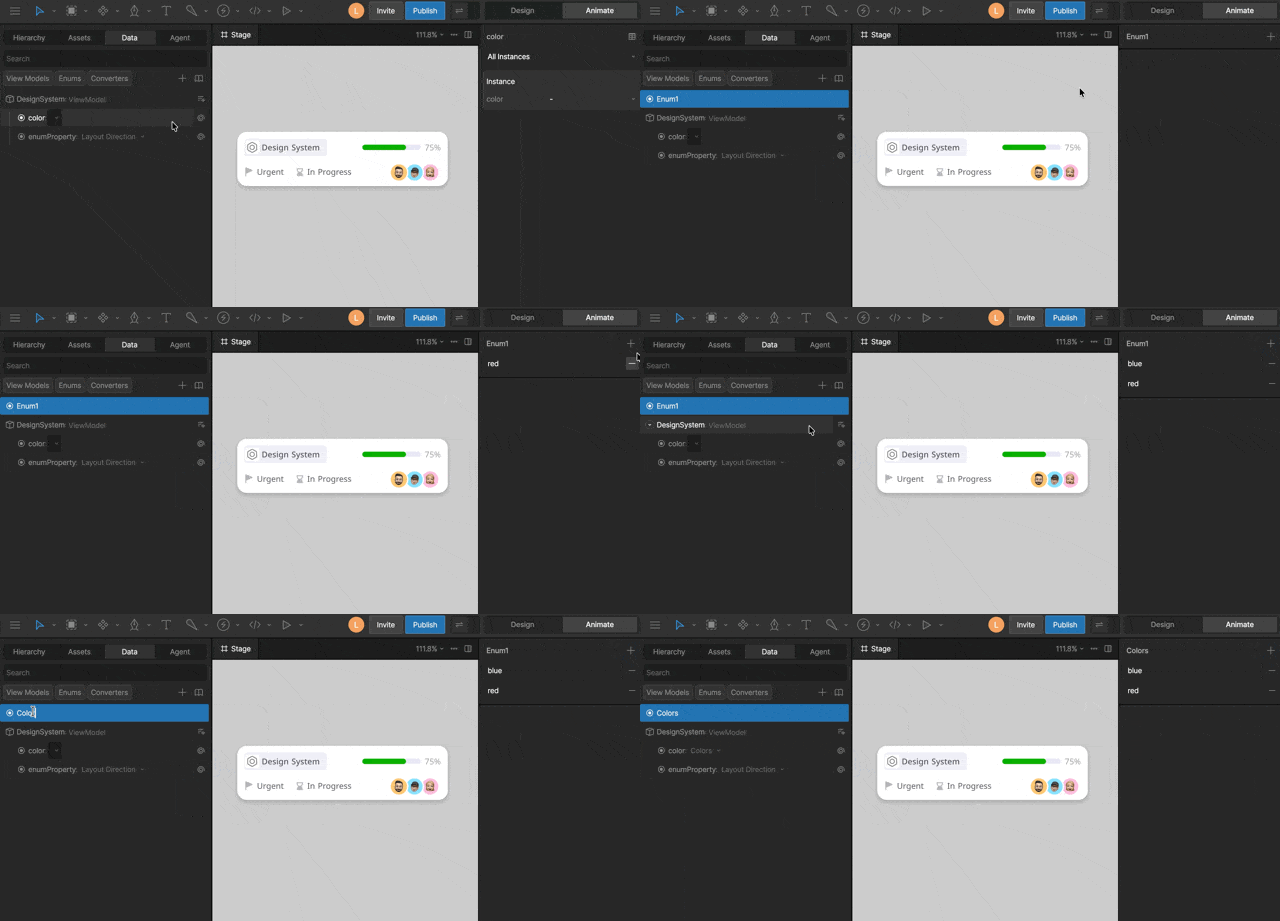 Open the Data panel, click the `+` icon and select enum.
With your enum selected, click the `+` icon in the right sidebar.
Assign your custom enum to your enum view model property.
## Controlling Solos with enums
Use an enum to control which Solo is active by mapping each enum value to a Solo.
Open the Data panel, click the `+` icon and select enum.
With your enum selected, click the `+` icon in the right sidebar.
Assign your custom enum to your enum view model property.
## Controlling Solos with enums
Use an enum to control which Solo is active by mapping each enum value to a Solo.
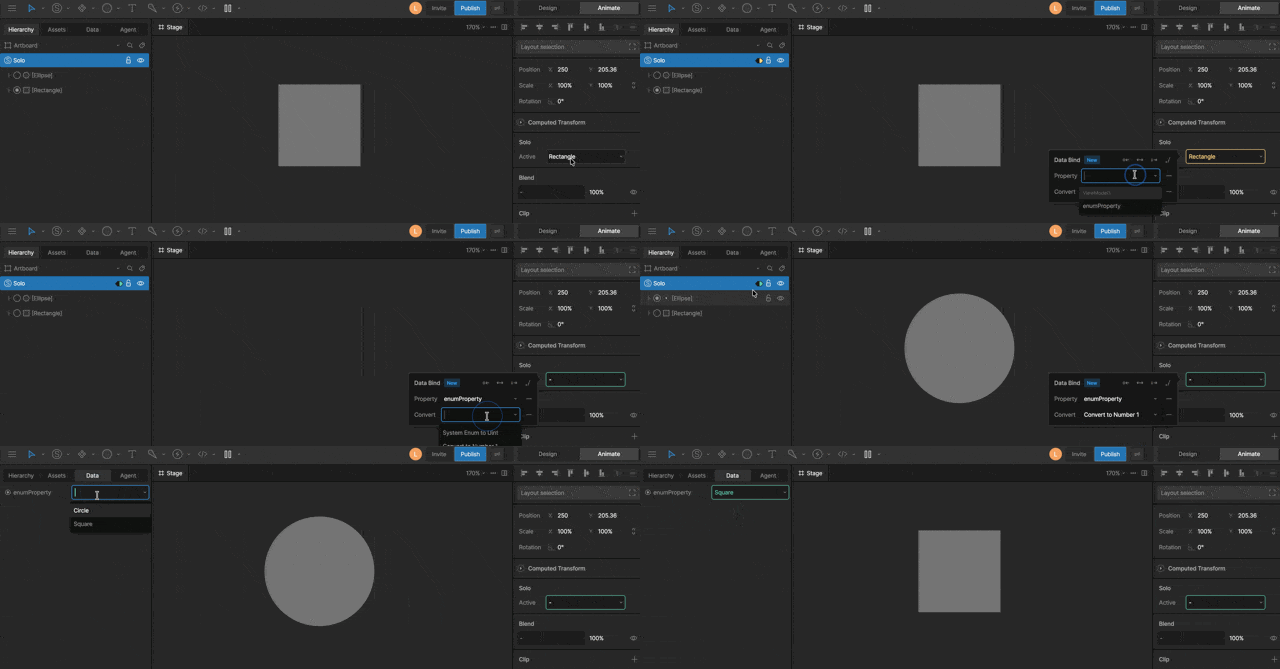 Create a [custom enum](#custom-enums) with values that match the **names and order** of your Solos.
[Export the names](/editor/exporting/exporting-names) of the objects used by the Solo so they are accessible at runtime.
Bind the enum to the Solo’s **Active** property and apply a **Convert to Number** converter.
Create a [custom enum](#custom-enums) with values that match the **names and order** of your Solos.
[Export the names](/editor/exporting/exporting-names) of the objects used by the Solo so they are accessible at runtime.
Bind the enum to the Solo’s **Active** property and apply a **Convert to Number** converter.