> ## Documentation Index
> Fetch the complete documentation index at: https://rive-transitions-2.mintlify.site/llms.txt
> Use this file to discover all available pages before exploring further.
# Lists
> Use Data Binding to generate lists at runtime
export const YouTube = ({id, timestamp}) => {
const videoSrc = timestamp ? `https://www.youtube.com/embed/${id}?start=${timestamp}` : `https://www.youtube.com/embed/${id}`;
return ;
};
A List is a way to display a set of items that are dynamically generated based on bound data values that you set up in your View Models. This allows you to build Rive files that can change in real time based on updates to those values. You can use Lists to create:
* Menus with a dynamic amount of options
* Product listings
* Notifications or activity feeds
* Chat messages
* Dropdown menus
* Contacts, friends, or followers lists
* High scores, tables, and more
***
## Artboard Lists
Artboard Lists enable you to generate a number of list items using an Artboard to represent each item in your List. Artboard Lists must be added as children of an Artboard or Layout.
To add an Artboard List to the stage, first select either an Artboard or a Layout. In the inspector on the right side of the editor, you will see a button to add an Artboard List. Click it to add the List to your hierarchy. It will appear as a child of the Artboard or Layout you had previously selected.
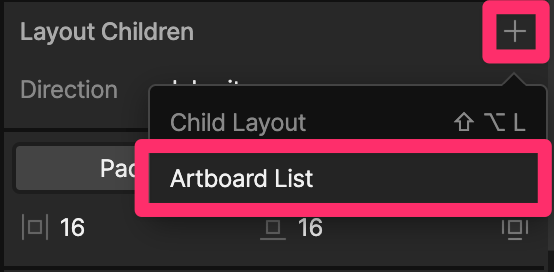 Once the Artboard List is added to your hierarchy, you can select it and see its inspector.
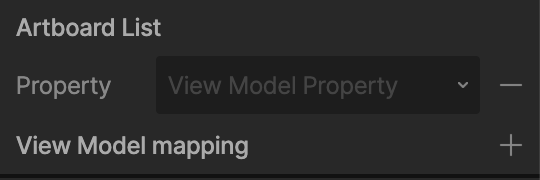 The next step is to bind data to it using Data Binding. This will determine the content and number of items in your List. There are 2 ways to generate List content:
* Using the View Model List property
* Using a View Model Number property together with a Number to List converter
## View Model List Property
Before continuing, it's important to understand the fundamentals of Data Binding, in particular, what a View Model is, how to create one and how to bind it to an object's properties. Learn more in the [Data Binding Overview](/editor/data-binding/overview).
A View Model List is a property that can contain a dynamic number of items which each represent a View Model instance. In order to be used in a List, the View Model must be bound to an Artboard.
To Create a View Model List and bind it to an Artboard List:
Navigate to the Data tab in the Editor. Click the + button beside View Models to create a View Model (this will represent your List item)
Bind that View Model to an Artboard that you want to use to render your List item. This is where you may also want to create additional View Model properties and bind those to object properties on that Artboard.
Click the + button beside View Models to create another View Model (this will be the View Model that contains your List and should be bound to the Artboard where you want your List to render)
Select the newly created View Model and click the + button next to it. From the popout select **List**. This adds a List property to the View Model
The next step is to bind data to it using Data Binding. This will determine the content and number of items in your List. There are 2 ways to generate List content:
* Using the View Model List property
* Using a View Model Number property together with a Number to List converter
## View Model List Property
Before continuing, it's important to understand the fundamentals of Data Binding, in particular, what a View Model is, how to create one and how to bind it to an object's properties. Learn more in the [Data Binding Overview](/editor/data-binding/overview).
A View Model List is a property that can contain a dynamic number of items which each represent a View Model instance. In order to be used in a List, the View Model must be bound to an Artboard.
To Create a View Model List and bind it to an Artboard List:
Navigate to the Data tab in the Editor. Click the + button beside View Models to create a View Model (this will represent your List item)
Bind that View Model to an Artboard that you want to use to render your List item. This is where you may also want to create additional View Model properties and bind those to object properties on that Artboard.
Click the + button beside View Models to create another View Model (this will be the View Model that contains your List and should be bound to the Artboard where you want your List to render)
Select the newly created View Model and click the + button next to it. From the popout select **List**. This adds a List property to the View Model 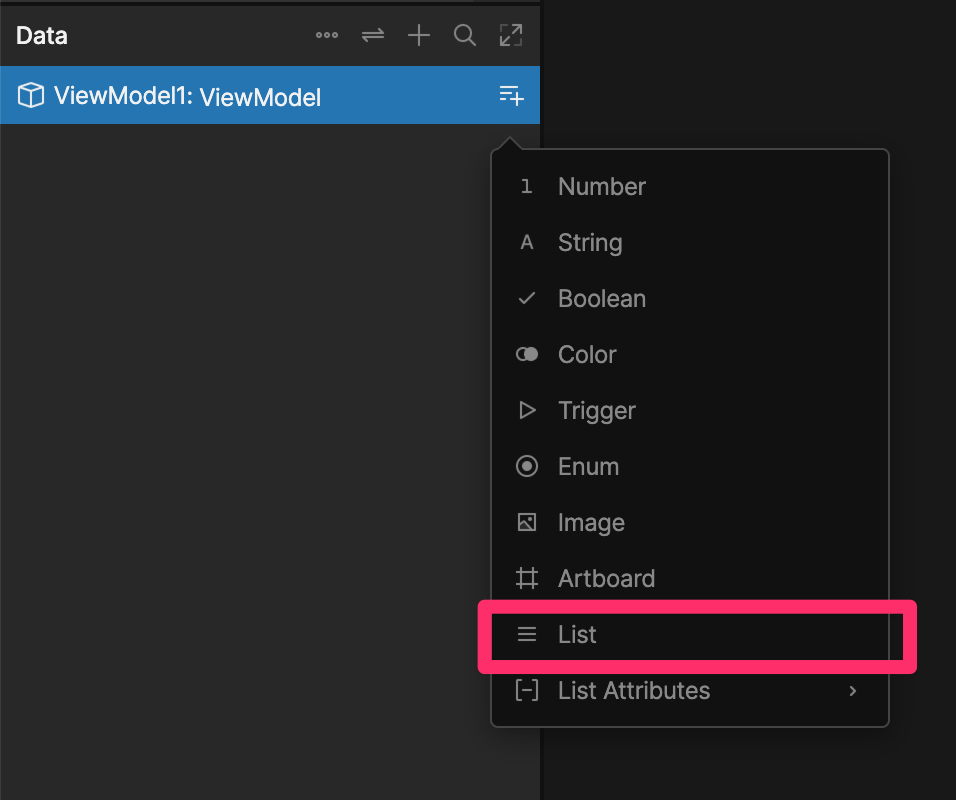 Select the List property and in the inspector on the right, you can add items by clicking Add List item
  Once a List item is added, you can click the settings button to the left of its name in order to set the View Model and View Model instance for that item
After adding your List items, go back to the Hierarchy tab, select the Artboard List, and from the Artboard List property dropdown, select the ViewModel List property you created above.
Run the state machine and you should see your list items. Remember that the layout will be determined by the Artboard List's parent, so modify the parent's settings in order to tweak your List's layout
Rive's runtimes provide [APIs to modify the List and List items at runtime](/runtimes/data-binding#lists) (for example, adding or removing items).
## View Model Number with Converter
The second way to populate your list is by specifying the number of items you want in your List along with the ViewModel (Artboard) you want to instance. This can be done using a View Model Number property in combination with the new Number to List converter.
To Create a View Model Number to List converter and bind it to an Artboard List:
Navigate to the Data tab in the Editor. Click the + button beside View Models to create a View Model (this will represent your List item)
Bind that View Model to an Artboard that you want to use to render your List item. This is where you may also want to create additional View Model properties and bind those to object properties on that Artboard.
Click the + button beside View Models to create another View Model (this will be the View Model that contains your Number property and should be bound to the Artboard where you want your List to render)
Select the newly created View Model and click the + button next to it. From the popout select Number. Select the newly created Number and in the inspector, set the number of items you want in your List
Click the + button and choose **Converters > List > Number to List**.
Once a List item is added, you can click the settings button to the left of its name in order to set the View Model and View Model instance for that item
After adding your List items, go back to the Hierarchy tab, select the Artboard List, and from the Artboard List property dropdown, select the ViewModel List property you created above.
Run the state machine and you should see your list items. Remember that the layout will be determined by the Artboard List's parent, so modify the parent's settings in order to tweak your List's layout
Rive's runtimes provide [APIs to modify the List and List items at runtime](/runtimes/data-binding#lists) (for example, adding or removing items).
## View Model Number with Converter
The second way to populate your list is by specifying the number of items you want in your List along with the ViewModel (Artboard) you want to instance. This can be done using a View Model Number property in combination with the new Number to List converter.
To Create a View Model Number to List converter and bind it to an Artboard List:
Navigate to the Data tab in the Editor. Click the + button beside View Models to create a View Model (this will represent your List item)
Bind that View Model to an Artboard that you want to use to render your List item. This is where you may also want to create additional View Model properties and bind those to object properties on that Artboard.
Click the + button beside View Models to create another View Model (this will be the View Model that contains your Number property and should be bound to the Artboard where you want your List to render)
Select the newly created View Model and click the + button next to it. From the popout select Number. Select the newly created Number and in the inspector, set the number of items you want in your List
Click the + button and choose **Converters > List > Number to List**. 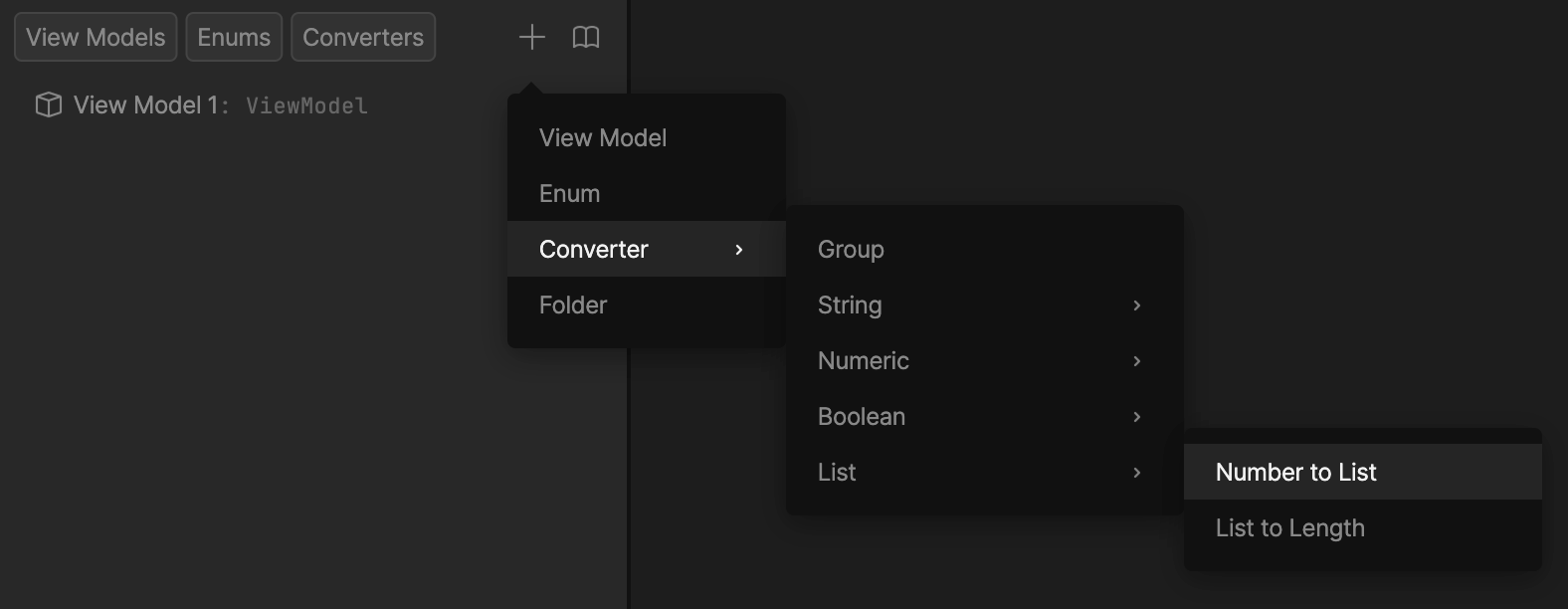 Select the created converter and in the inspector, choose the View Model that you created earlier that represents your List item. The converter will convert the Number of items to actual Artboard items
 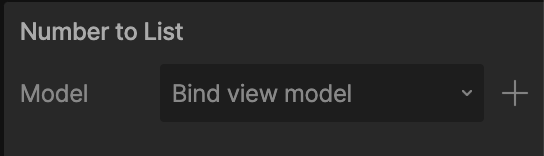 After adding your Number property and converter, go back to the Hierarchy tab, select the Artboard List, and from the Artboard List property dropdown, select the ViewModel Number property you created above. The Combobox will show a yellow outline. Right click the Combobox and choose Update Bind. In the converter field, select the Number to List converter you created. The yellow outline should change to green.
Run the state machine and you should see your list items. Remember that the layout will be determined by the Artboard List's parent, so modify the parent's settings in order to tweak your List's layout
## View Model List Item Index
There may be times where it is useful for the Artboard to know at which index it exists within its parent List. This is available using the View Model list item index property.
This can be added to your item's View Model by clicking the + button and selecting **List Attributes > Index**.
After adding your Number property and converter, go back to the Hierarchy tab, select the Artboard List, and from the Artboard List property dropdown, select the ViewModel Number property you created above. The Combobox will show a yellow outline. Right click the Combobox and choose Update Bind. In the converter field, select the Number to List converter you created. The yellow outline should change to green.
Run the state machine and you should see your list items. Remember that the layout will be determined by the Artboard List's parent, so modify the parent's settings in order to tweak your List's layout
## View Model List Item Index
There may be times where it is useful for the Artboard to know at which index it exists within its parent List. This is available using the View Model list item index property.
This can be added to your item's View Model by clicking the + button and selecting **List Attributes > Index**.
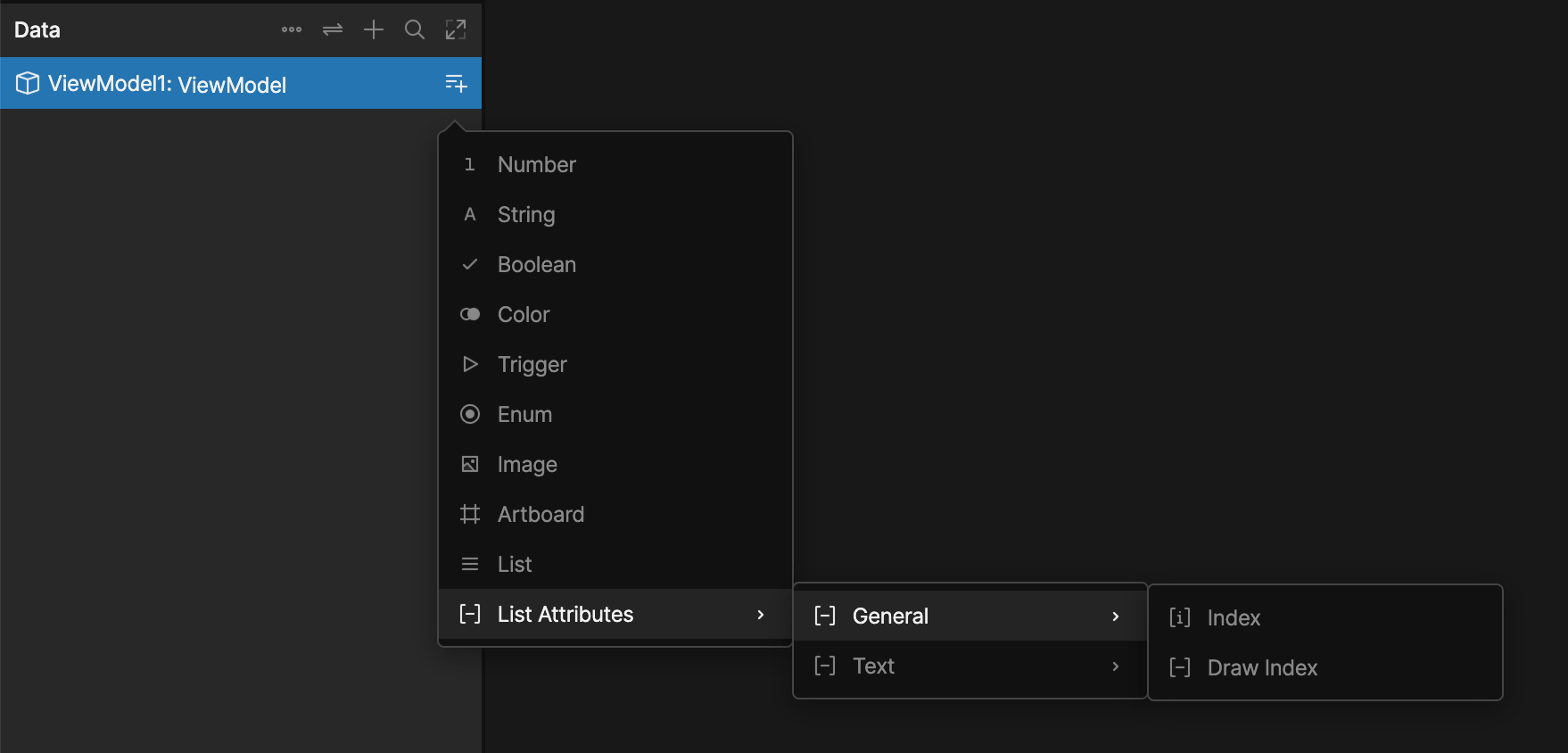 This property can then be bound to an object's properties and used directly (for example, to change the position of an object based on the index), used together with a converter (to display the index value as a string) or used as a condition in a state machine (to provide different behavior depending on the item's index).
When using item index with the [List property](/editor/data-binding/lists#view-model-list-property) and list items, be aware that if more than 1 list item is bound to the same View Model instance, they will share the same index value
## Lists & Scrolling
If you add your Artboard List as a child of a Layout, your List items will behave as children of its parent's Layout. This means things like direction, wrapping, padding, gap, alignment, etc. are all dictated by the parent Layout's properties.
In addition, if you have applied a [Scroll Constraint](/editor/layouts/scrolling) to the parent Layout, the List items will have the ability to scroll out of the box without any additional setup.
There are additional Scroll properties that can be applied when scrolling Lists. See [List Scrolling](/editor/layouts/scrolling#list-scrolling) for more details.
This property can then be bound to an object's properties and used directly (for example, to change the position of an object based on the index), used together with a converter (to display the index value as a string) or used as a condition in a state machine (to provide different behavior depending on the item's index).
When using item index with the [List property](/editor/data-binding/lists#view-model-list-property) and list items, be aware that if more than 1 list item is bound to the same View Model instance, they will share the same index value
## Lists & Scrolling
If you add your Artboard List as a child of a Layout, your List items will behave as children of its parent's Layout. This means things like direction, wrapping, padding, gap, alignment, etc. are all dictated by the parent Layout's properties.
In addition, if you have applied a [Scroll Constraint](/editor/layouts/scrolling) to the parent Layout, the List items will have the ability to scroll out of the box without any additional setup.
There are additional Scroll properties that can be applied when scrolling Lists. See [List Scrolling](/editor/layouts/scrolling#list-scrolling) for more details.