> ## Documentation Index
> Fetch the complete documentation index at: https://rive-transitions-2.mintlify.site/llms.txt
> Use this file to discover all available pages before exploring further.
# Property Groups
> Create local values that can be keyed, animated, and bound to View Model properties.
export const Marketplace = ({href, children}) => {
const hrefWithTracking = `${href}?utm_source=docs&utm_medium=docs_link_card&utm_campaign=docs_to_marketplace_links`;
return
{children ? children : "Open this file on Marketplace, then click Remix to experiment in the Rive Editor."}
;
};
export const YouTube = ({id, timestamp}) => {
const videoSrc = timestamp ? `https://www.youtube.com/embed/${id}?start=${timestamp}` : `https://www.youtube.com/embed/${id}`;
return ;
};
Property Groups are local, artboard-level values that can be keyed, animated, and bound to View Model properties.
View Model properties are global and shared, while timelines and state machines are local. Property Groups bridge that gap, allowing local animation and logic to read from or drive global data.
## Creating a Property Group
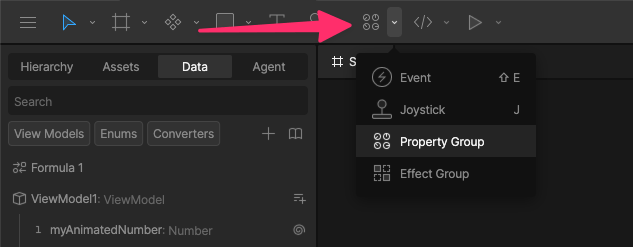
Select your Property Group tool and click the stage to add one to your artboard.
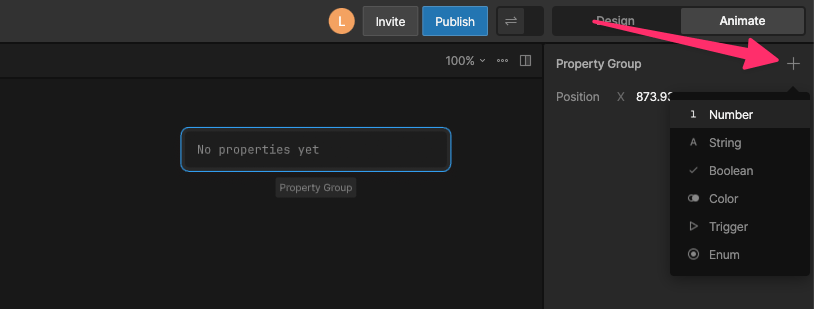
 Select your Property Group and in the right sidebar, click the `+` icon and select your property type.
 ## Common Use Cases
### Controlling a View Model Property with a Timeline
You can’t key a View Model property directly in the timeline. Instead, you key a Property Group value, then bind that value to a View Model property.
This lets you use [Keyframes](/editor/animate-mode/keys) in a timeline to update View Model data at runtime.
**Why can't I key View Model Properties directly?**
View Model properties represent global data shared across your app, while keyframes are local to a timeline—so they can’t be keyed directly.
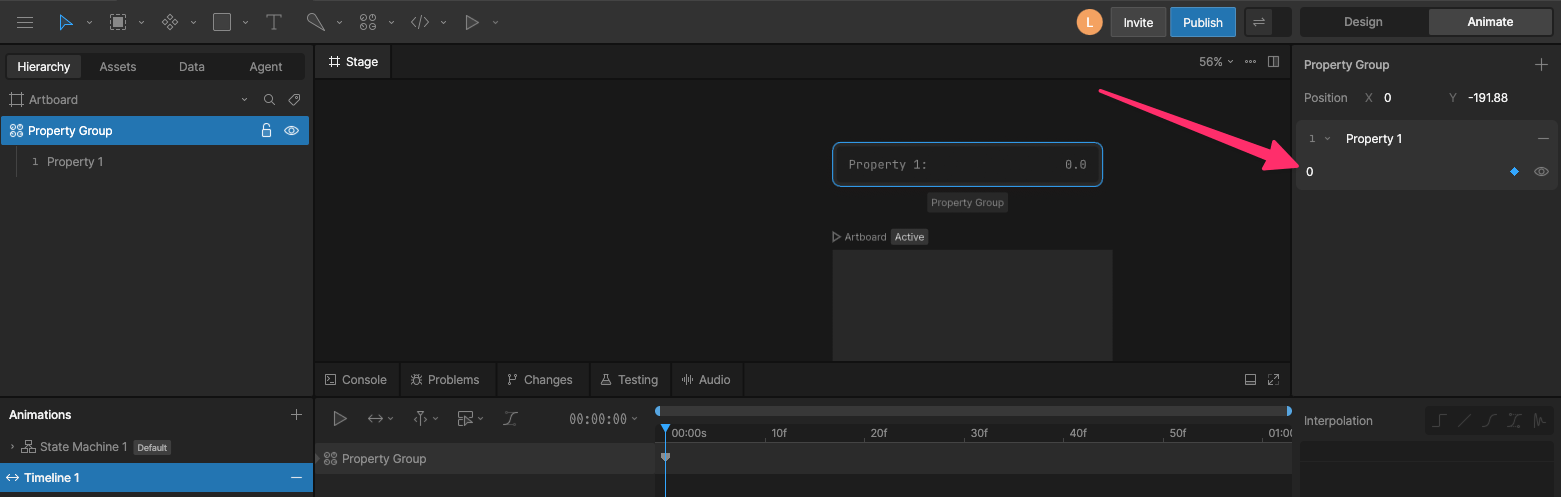
With the Property Group selected, move the timeline playhead and change the property value to create keyframes.
## Common Use Cases
### Controlling a View Model Property with a Timeline
You can’t key a View Model property directly in the timeline. Instead, you key a Property Group value, then bind that value to a View Model property.
This lets you use [Keyframes](/editor/animate-mode/keys) in a timeline to update View Model data at runtime.
**Why can't I key View Model Properties directly?**
View Model properties represent global data shared across your app, while keyframes are local to a timeline—so they can’t be keyed directly.
With the Property Group selected, move the timeline playhead and change the property value to create keyframes.
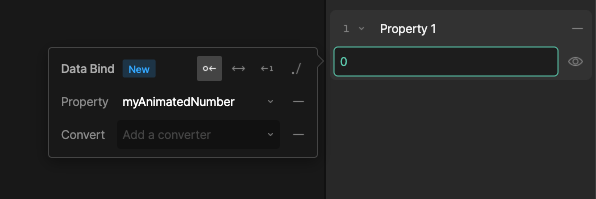
 Right-click the property and select the View Model property you want to control. Set the direction to Target → Source so the keyed value drives the View Model property.
 When you run your state machine, the View Model property updates based on the keyed Property Group values.
### Controlling one View Model Property with another
You can't directly control one View Model Property with another View Model Property. Instead, you can use a Property Group value that reads one View Model Property and sets another.
**Why can't I control one View Model property with another?**
Allowing View Model properties to control each other would create hidden dependencies and update loops, so relationships between values are handled explicitly through bindings.
In this example we'll have two Number View Model Properties called `myNumber` and `myOtherNumber`, which will be `myNumber` doubled.
Create a new Converter of type Numeric > Formula and add a number value, a multiply operation, and another number.
When you run your state machine, the View Model property updates based on the keyed Property Group values.
### Controlling one View Model Property with another
You can't directly control one View Model Property with another View Model Property. Instead, you can use a Property Group value that reads one View Model Property and sets another.
**Why can't I control one View Model property with another?**
Allowing View Model properties to control each other would create hidden dependencies and update loops, so relationships between values are handled explicitly through bindings.
In this example we'll have two Number View Model Properties called `myNumber` and `myOtherNumber`, which will be `myNumber` doubled.
Create a new Converter of type Numeric > Formula and add a number value, a multiply operation, and another number.
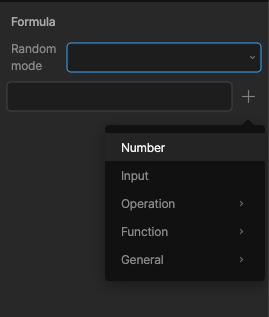 Bind the first number to `myNumber`.
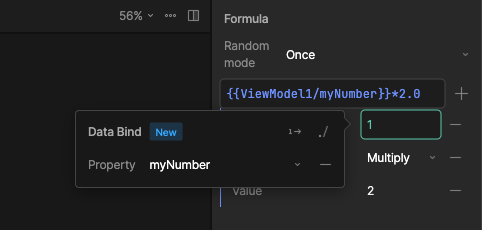 Select the Property Group, right-click the property, and bind it to the `myOtherNumber` value using the converter. Set the direction to Target → Source so the converted value drives the View Model property.
When you run your state machine, you should see that `myOtherNumber` is double `myNumber`.
Select the Property Group, right-click the property, and bind it to the `myOtherNumber` value using the converter. Set the direction to Target → Source so the converted value drives the View Model property.
When you run your state machine, you should see that `myOtherNumber` is double `myNumber`.
