> ## Documentation Index
> Fetch the complete documentation index at: https://rive-transitions-2.mintlify.site/llms.txt
> Use this file to discover all available pages before exploring further.
# View Models & Instances
export const UseCase = ({title, children}) => {
return ;
};
A View Model defines the structure of your data. It acts as a reusable blueprint that contains a collection of properties, such as a car's color, speed, and damage.
Each property has a type, such as Number, String, Boolean, Color, Enum, or List (For more information, see [View Model Properties](/editor/data-binding/view-model-properties)).
View Models do not store values themselves. Instead, values are stored in one or more View Model Instances that are created from the View Model.
For example, if you were building a racing game, you might create a Car View Model with the following [properties](/editor/data-binding/view-model-properties):
```jsx theme={null}
Car (View Model)
color: Color
damage: number
make: string
speed: number
```
A single View Model can be used to create many View Model Instances. Each instance shares the same structure but stores its own values.
```jsx theme={null}
Car1 (View Model Instance)
color: 0xFFFF0000
damage: 0
make: "Subaru"
speed: 0
Car2 (View Model Instance)
color: 0xFFFF00FF
damage: .9
make: "Honda"
speed: 0
```
The properties in your instances can then be bound to elements in your designs, allowing text, images, colors, animations, state machines, and other properties to react to data changes automatically.
### Creating a View Model
A View Model defines the structure of your data. Before creating View Model Instances or setting up data bindings, you'll first need to create a View Model and add properties to it.
New Rive files come with a default view model called "ViewModel1" that is already attached to the main artboard.
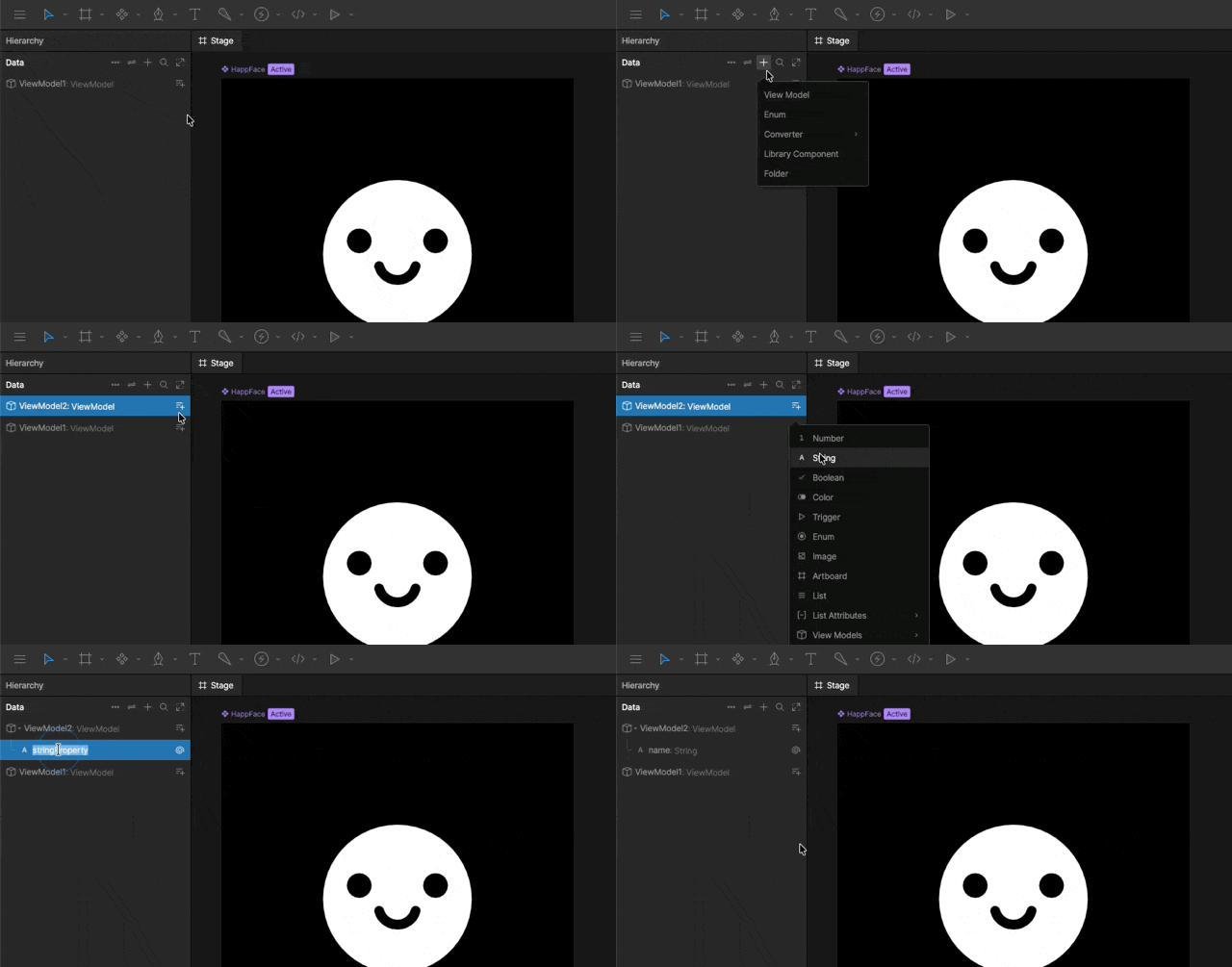 In the Data panel Click the `+` icon and select **View Model**.
In the Data panel, click the **Add View Model Property** button next to the view model name and select your [property type](/editor/data-binding/property-types).
## Creating and Editing Instances
Once your View Model has been created, you can create one or more View Model Instances that store actual values for those properties.
### Creating a View Model Instance
A View Model can have multiple instances. Each instance contains its own set of property values while sharing the same structure defined by the View Model.
When creating a new View Model, Rive automatically creates a View Model Instance named "Instance" so you can immediately begin testing bindings and previewing data.
In the Data panel Click the `+` icon and select **View Model**.
In the Data panel, click the **Add View Model Property** button next to the view model name and select your [property type](/editor/data-binding/property-types).
## Creating and Editing Instances
Once your View Model has been created, you can create one or more View Model Instances that store actual values for those properties.
### Creating a View Model Instance
A View Model can have multiple instances. Each instance contains its own set of property values while sharing the same structure defined by the View Model.
When creating a new View Model, Rive automatically creates a View Model Instance named "Instance" so you can immediately begin testing bindings and previewing data.
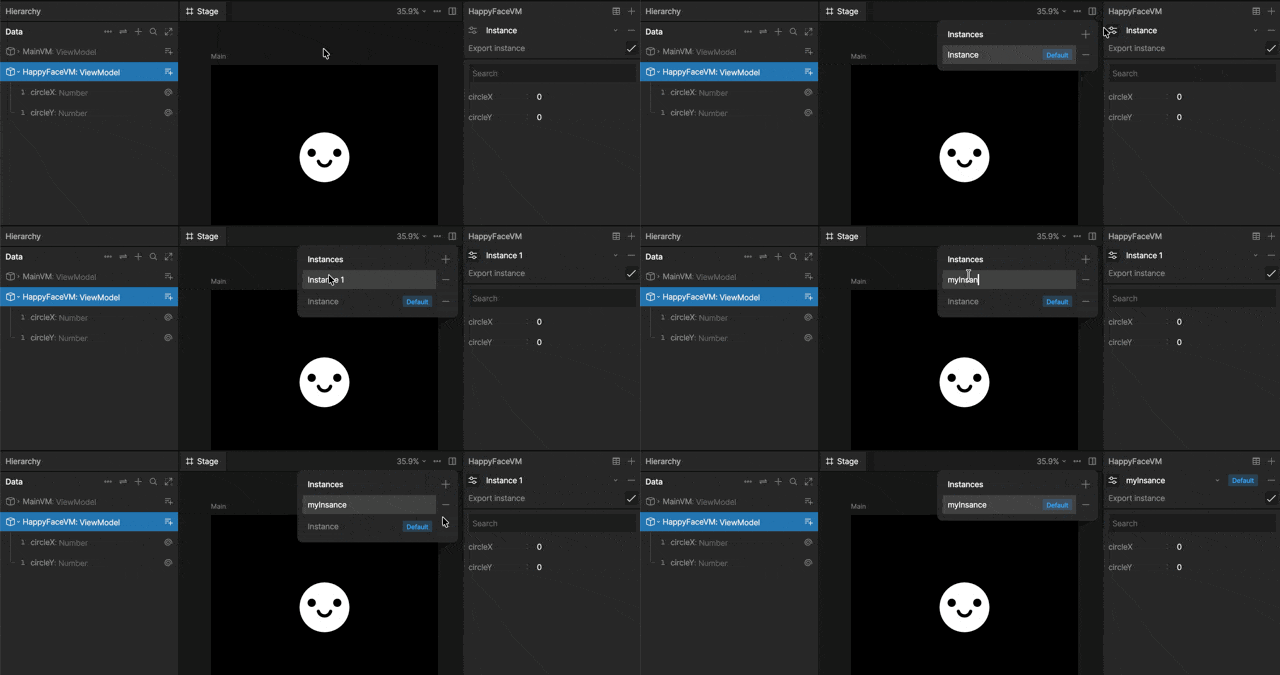 Select a View Model in the Data panel, then click the Controls icon next to the instance name in the Inspector.
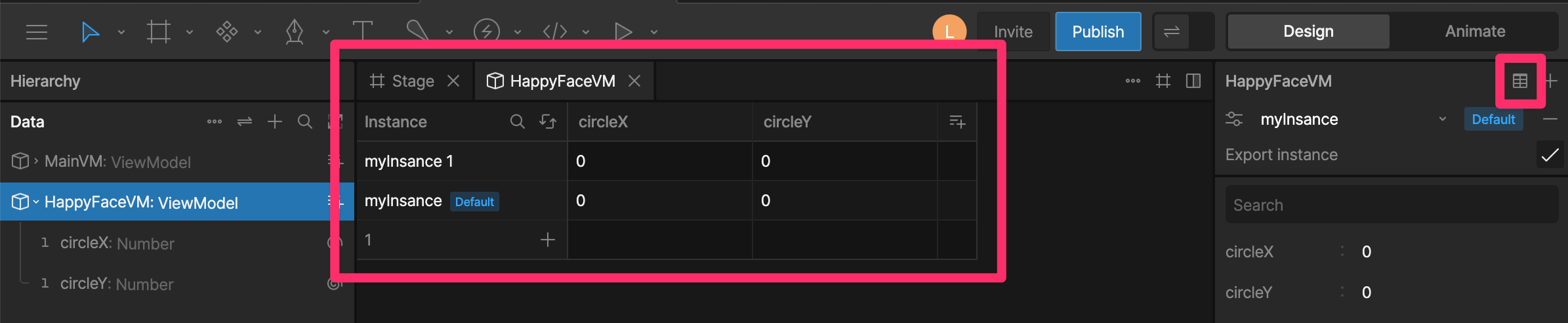
To see all of your view model instances and values at once, click the Open Table Data button.
Select a View Model in the Data panel, then click the Controls icon next to the instance name in the Inspector.
To see all of your view model instances and values at once, click the Open Table Data button.
 Click the `+` icon to add a new instance.
Double click the instance's name to rename it.
With the instance selected, change any of its properties.
Note that this changes **only** the values on the selected view model instance.
### Removing Instances
Click the `-` icon next to the instance name to delete it.
Click the `+` icon to add a new instance.
Double click the instance's name to rename it.
With the instance selected, change any of its properties.
Note that this changes **only** the values on the selected view model instance.
### Removing Instances
Click the `-` icon next to the instance name to delete it.
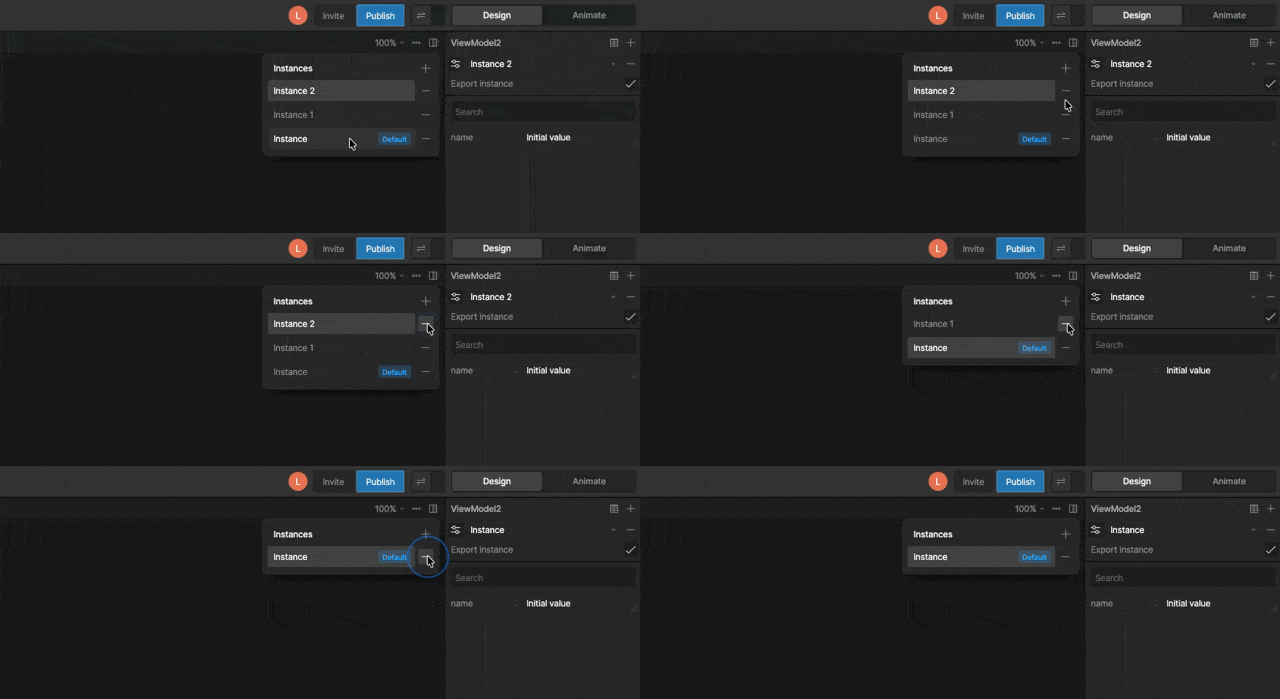 Deleting a View Model Instance does not remove the View Model or its properties. It only removes that instance and its stored values.
### Exporting Instances
By default, exported View Model Instances are included in the .riv file. Disable Export Instance when the data is only needed during development, not in your application at runtime.
Deleting a View Model Instance does not remove the View Model or its properties. It only removes that instance and its stored values.
### Exporting Instances
By default, exported View Model Instances are included in the .riv file. Disable Export Instance when the data is only needed during development, not in your application at runtime.
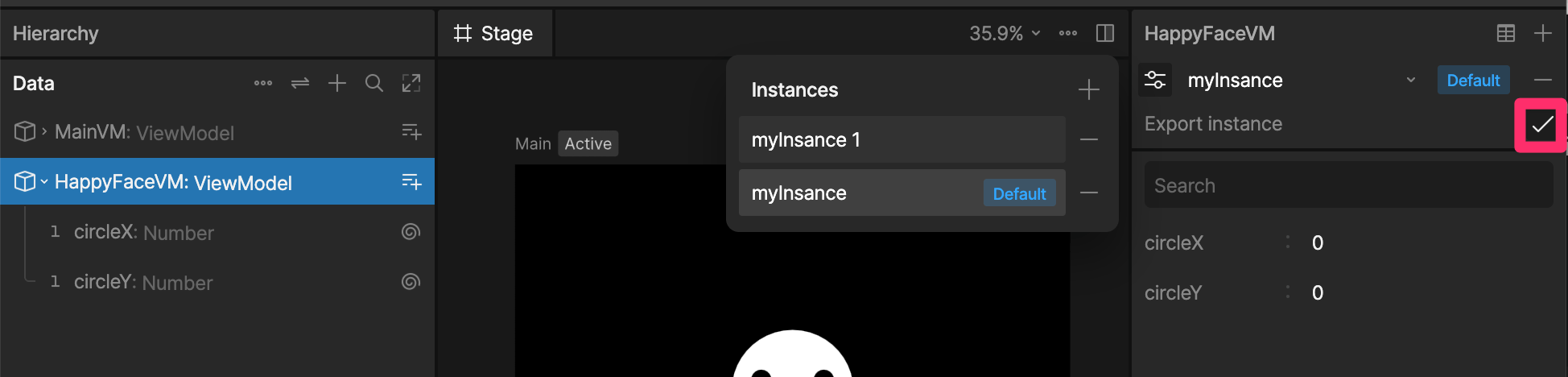 Let's say you're building a high score screen in Rive. While designing, you'll use fake score data, but when your game is live, the high scores will be populated using real data from a database or another source.
In this case embedding the example data just increases your .riv file size.
## Connecting View Model Instances to Artboards
Before binding data, you'll need to decide where the data should live.
Rive supports three common patterns:
| Pattern | |
| :------------------------------------------------------------- | :---------------------------------------------------------------------------------------------------------------------------- |
| [Top-Level Instance](#top-level-artboard-view-model-instances) | The data lives on the top-level artboard and its values can be used throughout the Rive file |
| [Nested components](#nested-component-instances) | The parent view model instance stores a reference to a nested view model instance, which can be applied to a nested component |
| [Stateful nested components](#stateful-components) | Self-contained, reusable components that store their own unique data |
### Top-Level Artboard View Model Instances
Attach a View Model Instance directly to the top-level artboard when the data should be available to the entire artboard and its children.
```
GameVM
├─ health
└─ score
└─ avatar
```
Let's say you're building a high score screen in Rive. While designing, you'll use fake score data, but when your game is live, the high scores will be populated using real data from a database or another source.
In this case embedding the example data just increases your .riv file size.
## Connecting View Model Instances to Artboards
Before binding data, you'll need to decide where the data should live.
Rive supports three common patterns:
| Pattern | |
| :------------------------------------------------------------- | :---------------------------------------------------------------------------------------------------------------------------- |
| [Top-Level Instance](#top-level-artboard-view-model-instances) | The data lives on the top-level artboard and its values can be used throughout the Rive file |
| [Nested components](#nested-component-instances) | The parent view model instance stores a reference to a nested view model instance, which can be applied to a nested component |
| [Stateful nested components](#stateful-components) | Self-contained, reusable components that store their own unique data |
### Top-Level Artboard View Model Instances
Attach a View Model Instance directly to the top-level artboard when the data should be available to the entire artboard and its children.
```
GameVM
├─ health
└─ score
└─ avatar
```
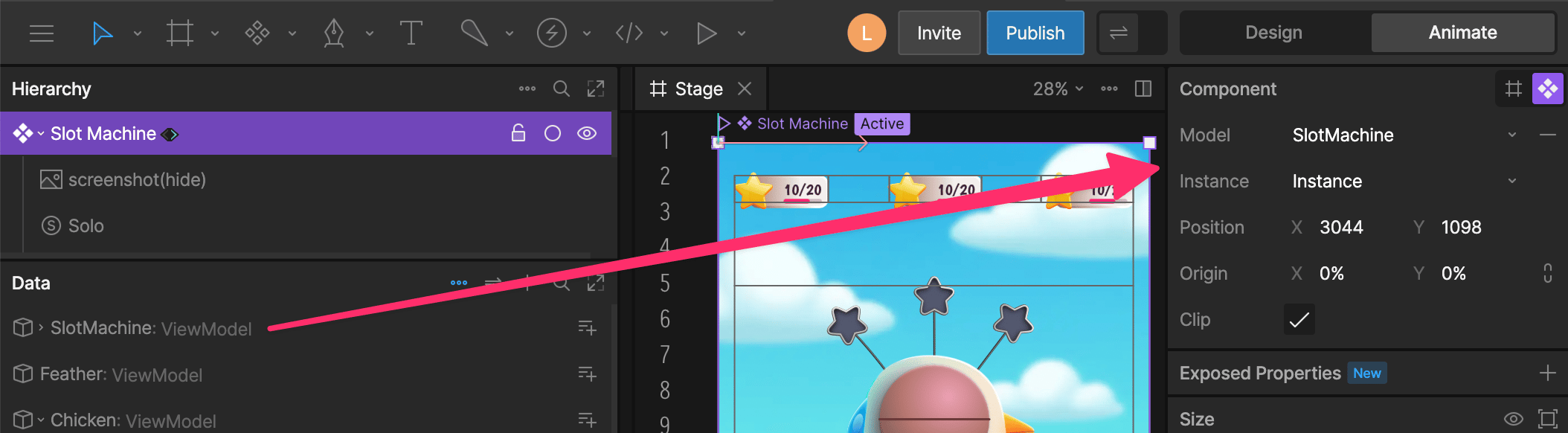 A game's main view model might contain a score property. This property might be used by various nested components, like the header and within the high scores modal.
### Nested Component Instances
Components can also have their own View Model Instances.
In this pattern, the parent View Model stores references to child instances, either directly or through a [list](/editor/data-binding/lists).
```
GameVM
├─ health
└─ score
└─ avatar
└─ inventory (stores an instance of InventoryVM)
InventoryVM
├─ Sword
├─ Shield
└─ Potion
```
Each component instance can have its own view model instance attached to it.
A game's main view model might contain a score property. This property might be used by various nested components, like the header and within the high scores modal.
### Nested Component Instances
Components can also have their own View Model Instances.
In this pattern, the parent View Model stores references to child instances, either directly or through a [list](/editor/data-binding/lists).
```
GameVM
├─ health
└─ score
└─ avatar
└─ inventory (stores an instance of InventoryVM)
InventoryVM
├─ Sword
├─ Shield
└─ Potion
```
Each component instance can have its own view model instance attached to it.
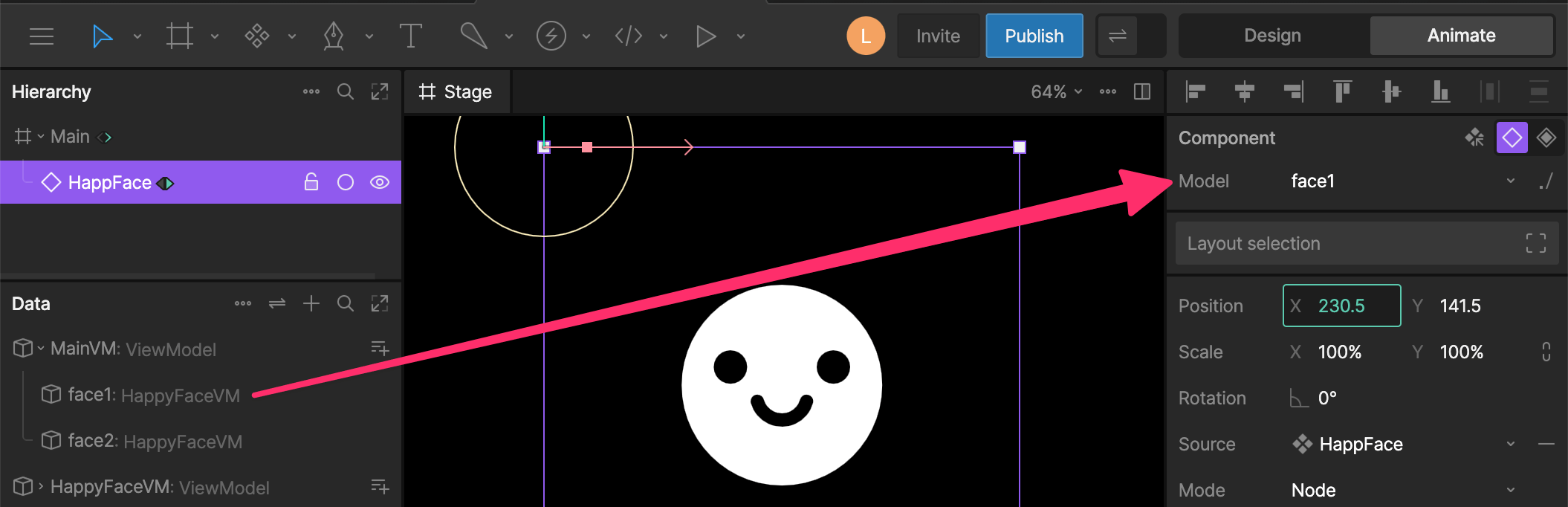 This approach is useful when a parent artboard needs to manage a collection of items while still allowing each component to maintain its own data.
An inventory screen might contain a list of Item View Model Instances, with each inventory slot component bound to a different item.
Because each instance must be created and connected explicitly, this pattern provides strong runtime control at the cost of additional setup.
### Stateful Components
A stateful component is an instance of a component that maintains its own data.
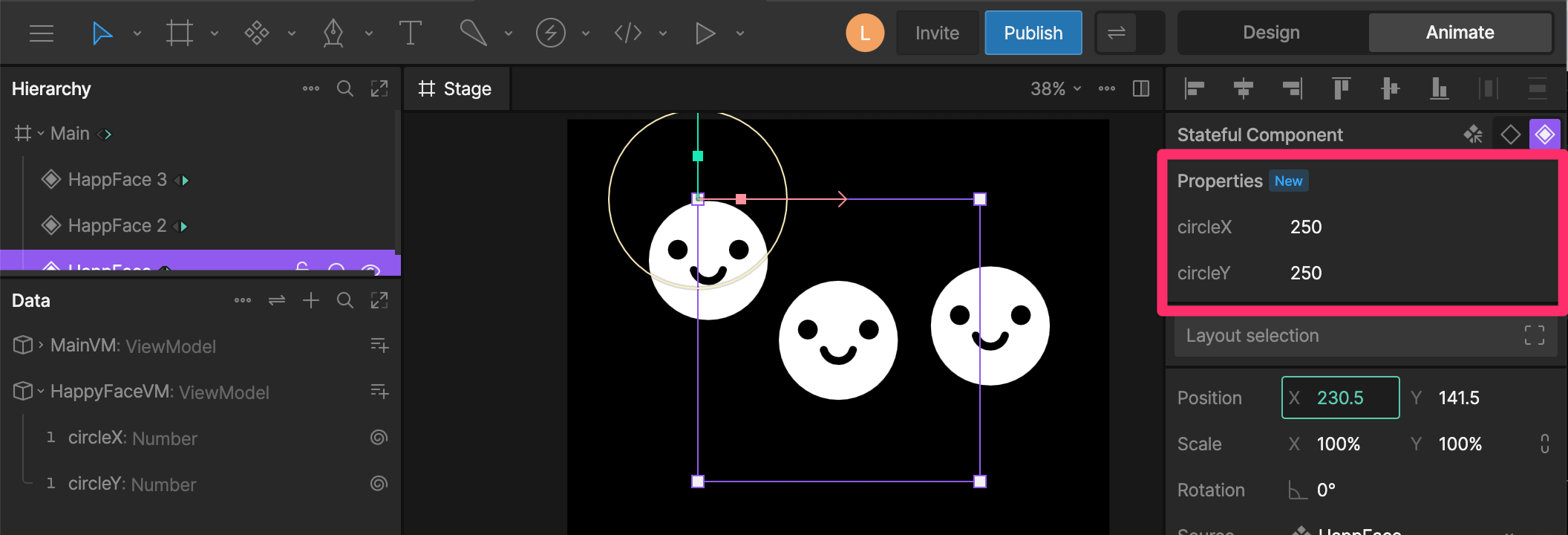
Unlike traditional component View Model Instances, these instances do not need to be created or referenced by the parent View Model. Instead their properties are exposed in the sidebar.
This approach is useful when a parent artboard needs to manage a collection of items while still allowing each component to maintain its own data.
An inventory screen might contain a list of Item View Model Instances, with each inventory slot component bound to a different item.
Because each instance must be created and connected explicitly, this pattern provides strong runtime control at the cost of additional setup.
### Stateful Components
A stateful component is an instance of a component that maintains its own data.
Unlike traditional component View Model Instances, these instances do not need to be created or referenced by the parent View Model. Instead their properties are exposed in the sidebar.
 For more information, see [Stateful Components](/editor/data-binding/stateful-components).