> ## Documentation Index
> Fetch the complete documentation index at: https://rive-transitions-2.mintlify.site/llms.txt
> Use this file to discover all available pages before exploring further.
# Stage
> The Stage is an infinite canvas where you can place artboards containing all your graphics.
export const YouTube = ({id, timestamp}) => {
const videoSrc = timestamp ? `https://www.youtube.com/embed/${id}?start=${timestamp}` : `https://www.youtube.com/embed/${id}`;
return ;
};
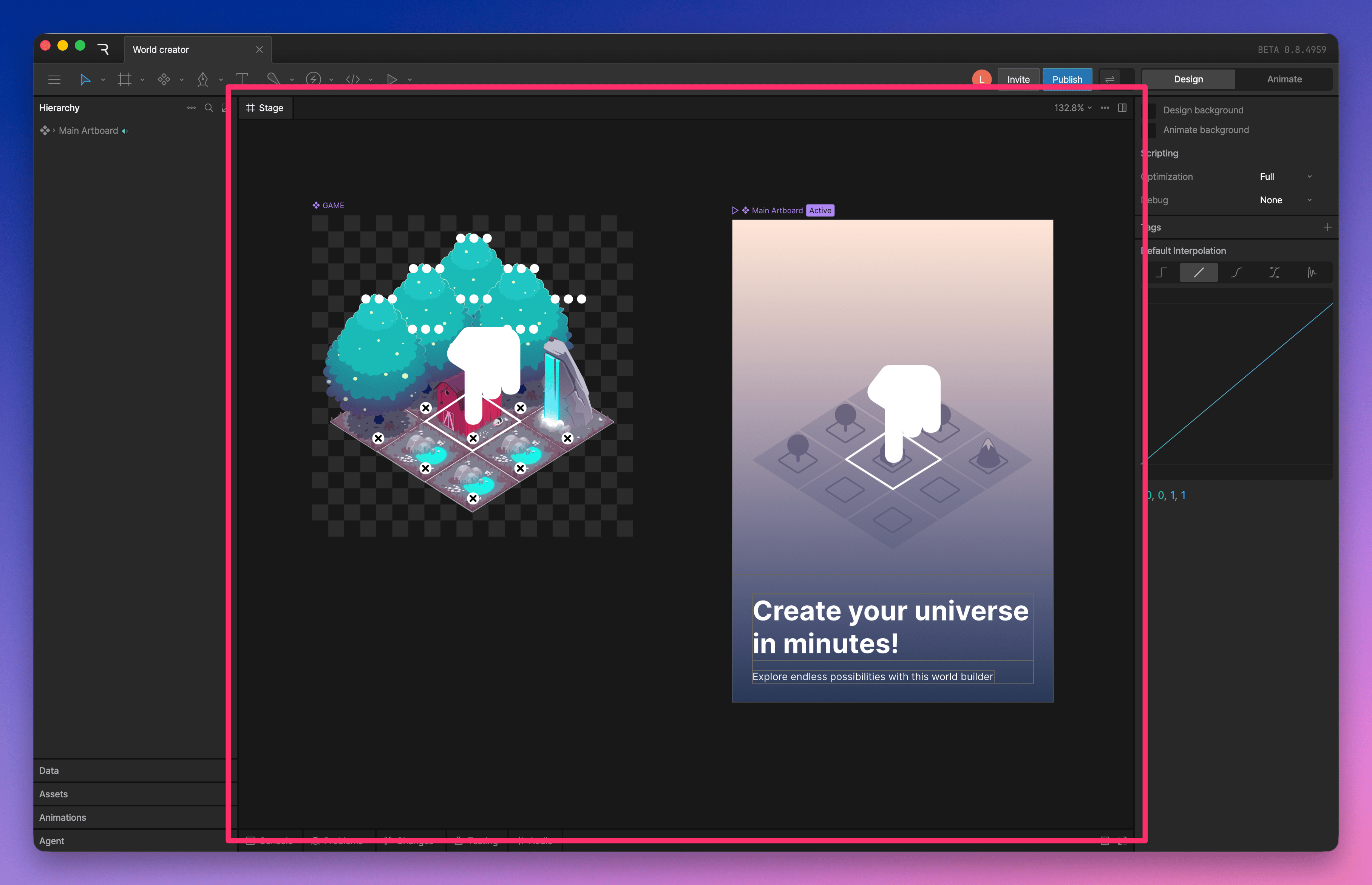 [Artboards](/editor/fundamentals/artboards) live on the stage. You can pan and zoom around the stage, select objects, and use guides or rulers to help position elements.
To learn how to navigate and select items on the stage, see [Keyboard Shortcuts](/editor/keyboard-shortcuts).
### View Options menu
[Artboards](/editor/fundamentals/artboards) live on the stage. You can pan and zoom around the stage, select objects, and use guides or rulers to help position elements.
To learn how to navigate and select items on the stage, see [Keyboard Shortcuts](/editor/keyboard-shortcuts).
### View Options menu
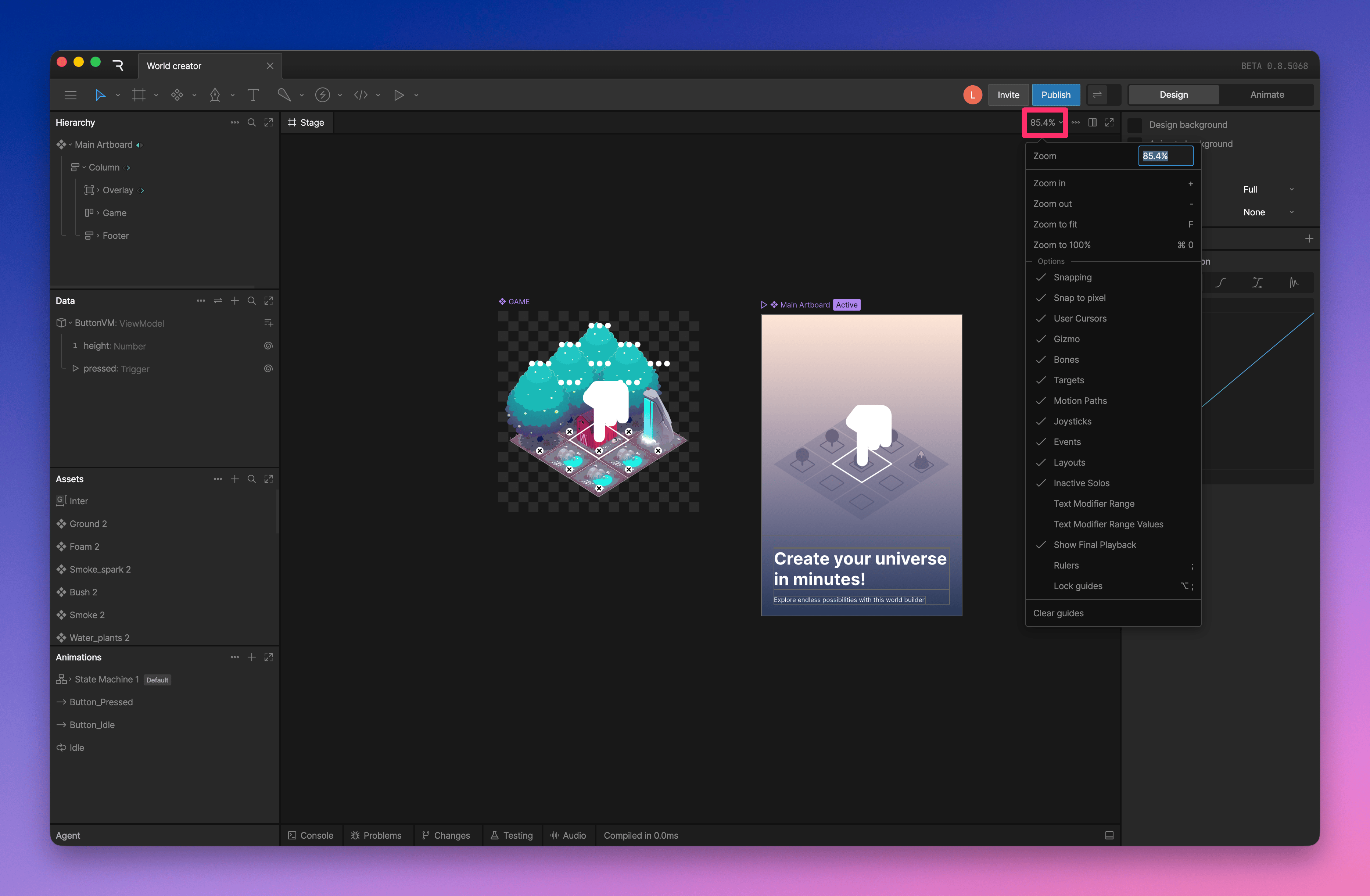 The View Options menu controls what appears on the stage while you work. Use it to adjust zoom, snapping, guides, and visual overlays for animation and interaction tools.
* **Zoom and snapping:** adjust the stage zoom level, enable snapping, or snap objects to pixels
* **User Cursors:** show or hide other users' cursors
* **Tool overlays:** show or hide gizmos, bones, targets, motion paths, joysticks, events, layouts, and text modifier ranges
* **Show Final Playback:** show the final playback state while editing
* **Rulers and guides:** show rulers, lock guides, or clear guides from the stage
## Rulers and Guides
The View Options menu controls what appears on the stage while you work. Use it to adjust zoom, snapping, guides, and visual overlays for animation and interaction tools.
* **Zoom and snapping:** adjust the stage zoom level, enable snapping, or snap objects to pixels
* **User Cursors:** show or hide other users' cursors
* **Tool overlays:** show or hide gizmos, bones, targets, motion paths, joysticks, events, layouts, and text modifier ranges
* **Show Final Playback:** show the final playback state while editing
* **Rulers and guides:** show rulers, lock guides, or clear guides from the stage
## Rulers and Guides