> ## Documentation Index
> Fetch the complete documentation index at: https://rive-transitions-2.mintlify.site/llms.txt
> Use this file to discover all available pages before exploring further.
# Font Assets
> Import and customize fonts.
export const VideoEmbed = ({src}) => {
return
;
};
## Importing Fonts
See [Importing Assets](/editor/fundamentals/assets-overview#importing-assets) for information about importing files, including TTF and OTF files.
### Google Fonts
You can add Google Fonts directly from the text style font options. Select a text run, choose a Google Font, and Rive adds the font to the Assets panel automatically.
## Export Options
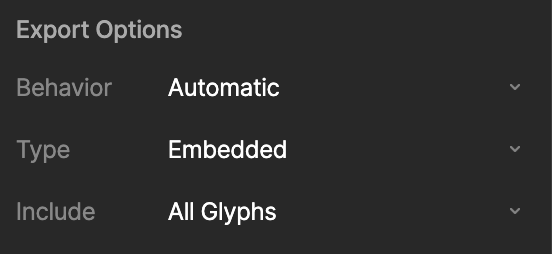
Font assets include an Include option that controls which glyphs are included when the font is exported.
* **All glyphs**: Include the full font.
* **Glyphs used**: Include only the glyphs used in the file.
* **Custom**: Include a custom set of glyphs.
 Fonts can significantly increase the size of your exported `.riv` file, especially when exporting **All glyphs**. Use **Glyphs used** or **Custom** when you only need a smaller set of characters.
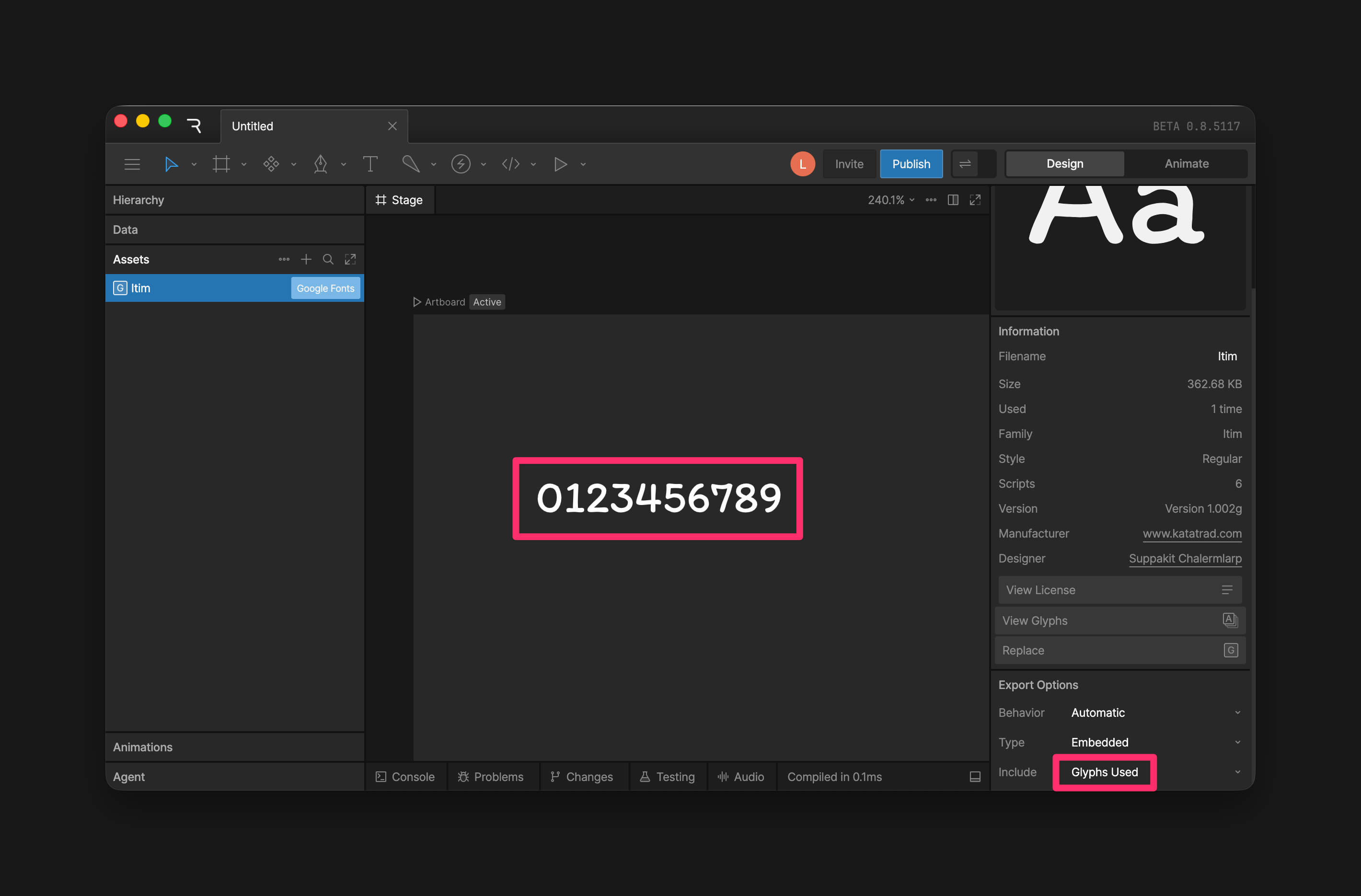
To control which glyphs are included, create an artboard that you do not export to the `.riv` file. Add a text run with the exact characters you want to include, then set the font asset’s **Include** option to **Glyphs used**.
For example, if your file only needs numbers, add a text run with `0123456789`. Those glyphs will be included in the exported font.
Fonts can significantly increase the size of your exported `.riv` file, especially when exporting **All glyphs**. Use **Glyphs used** or **Custom** when you only need a smaller set of characters.
To control which glyphs are included, create an artboard that you do not export to the `.riv` file. Add a text run with the exact characters you want to include, then set the font asset’s **Include** option to **Glyphs used**.
For example, if your file only needs numbers, add a text run with `0123456789`. Those glyphs will be included in the exported font.
 ### Custom - Export Scripts
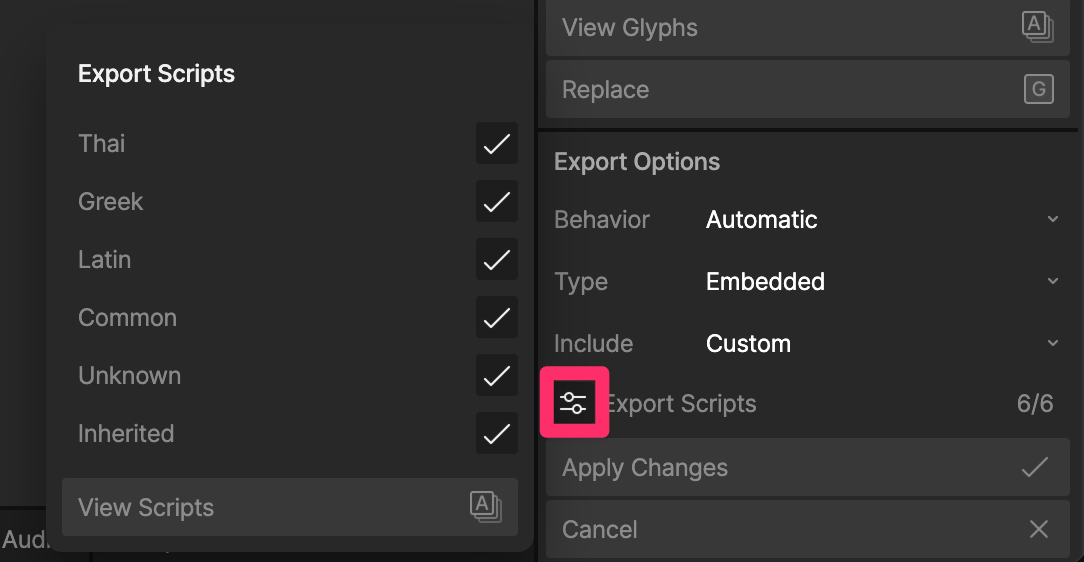
When **Include** is set to **Custom**, you can use **Export Scripts** to choose which glyph groups to include, such as Latin, Thai, or other writing systems.
### Custom - Export Scripts
When **Include** is set to **Custom**, you can use **Export Scripts** to choose which glyph groups to include, such as Latin, Thai, or other writing systems.