> ## Documentation Index
> Fetch the complete documentation index at: https://rive-transitions-2.mintlify.site/llms.txt
> Use this file to discover all available pages before exploring further.
# Text Styles
export const YouTube = ({id, timestamp}) => {
const videoSrc = timestamp ? `https://www.youtube.com/embed/${id}?start=${timestamp}` : `https://www.youtube.com/embed/${id}`;
return ;
};
A Text Style contains many of the familiar options that define how you'd like your text to be styled, and is applied to one or more runs. Currently, only Text Styles defined on a Text object can be applied to it. We'll introduce ways to share Text Styles across multiple Text objects or entire Rive files in future.
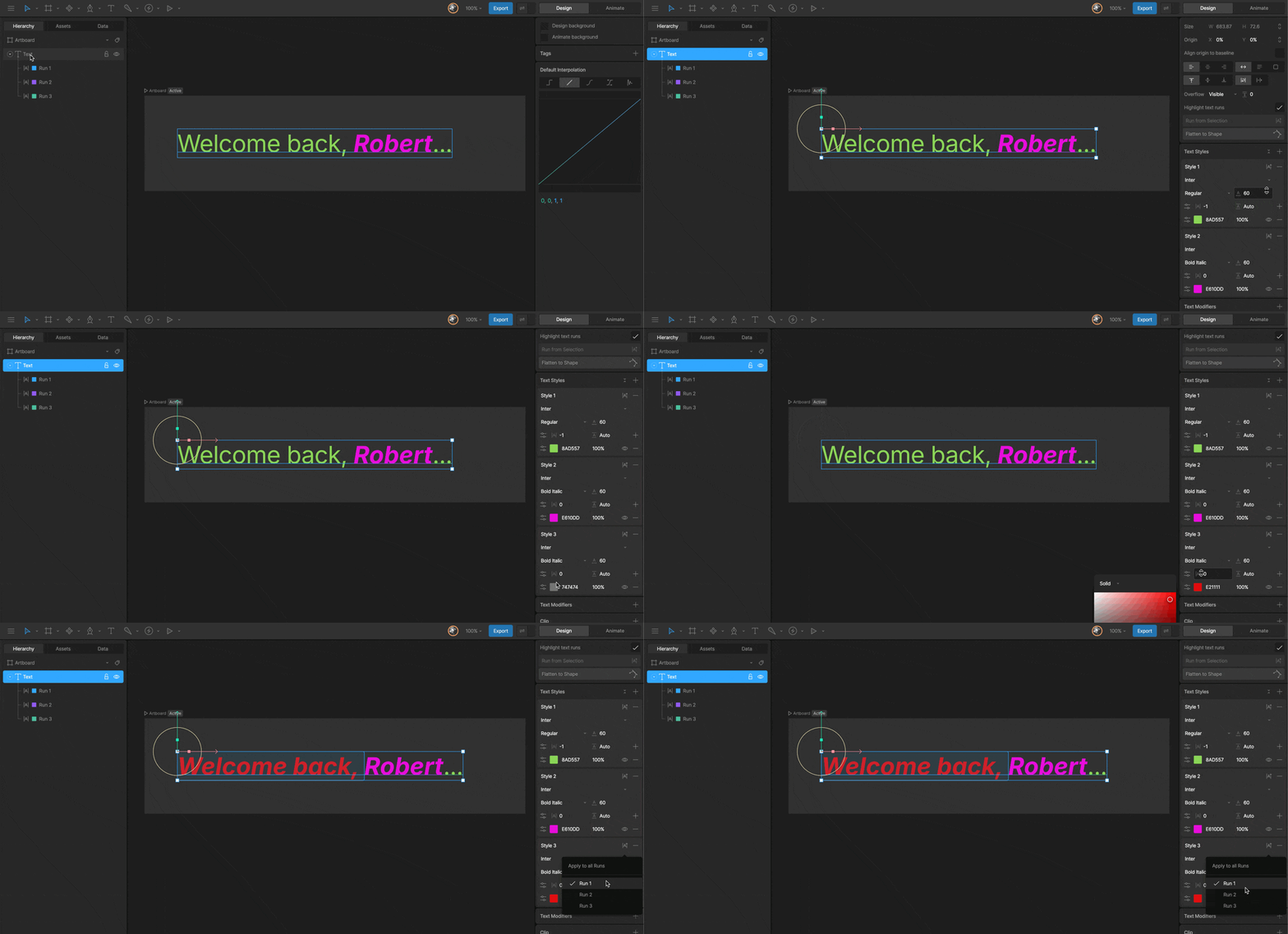
Each new Text object is created with a Text Style. Use the `+` action in the Inspector to create additional styles to be applied to specific Text Runs or to key between in an animation.
Each Text Style contains:
* Font
* Font Size
* Font Weight
* Line Height
* Fills
* Strokes
 ### Applying a style to a Text Run
There are two ways to apply a Text Style to a Text Run:
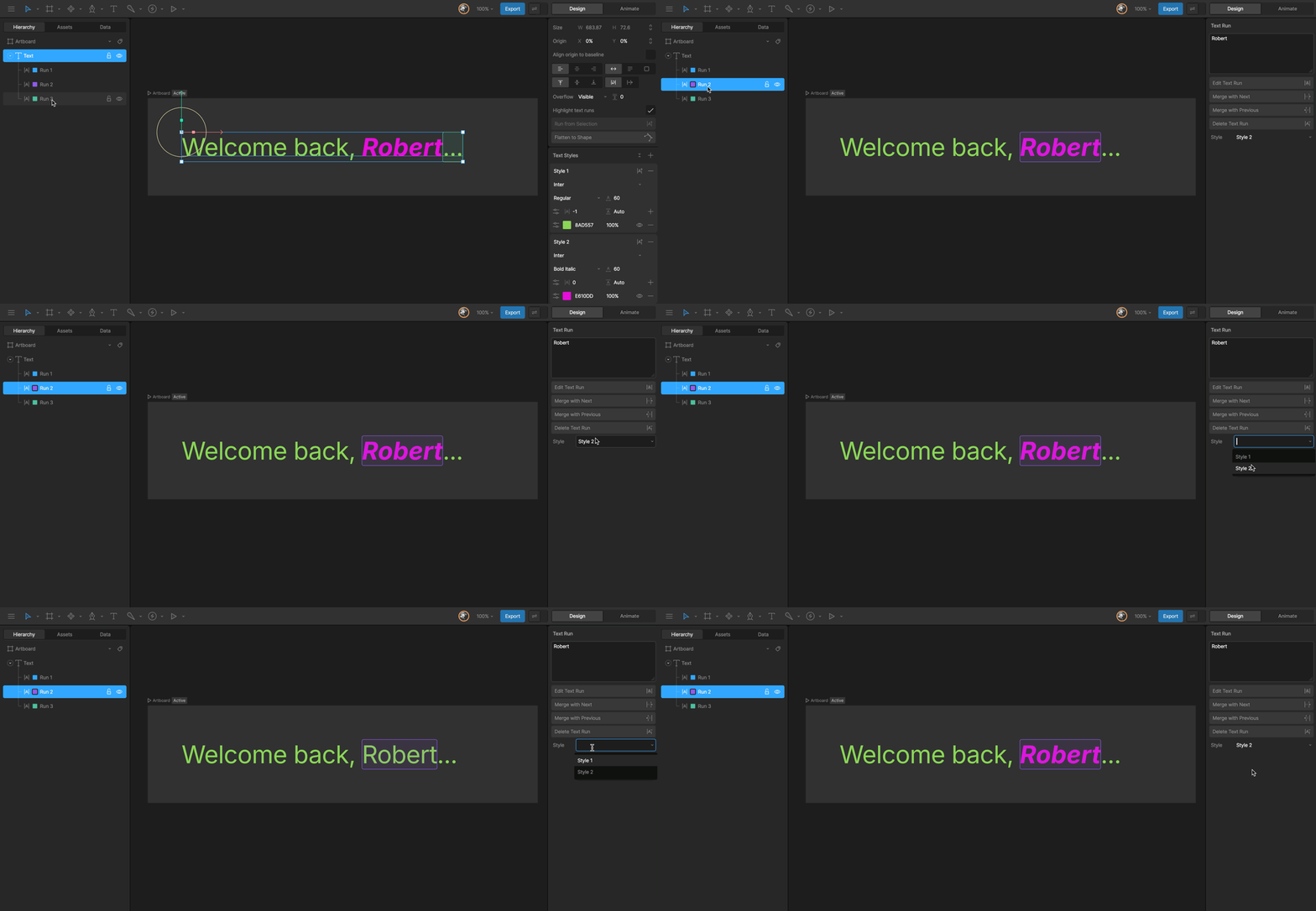
* Select the Text Run in the hierarchy, then use the Style dropdown in the Inspector.
* Select the `A+` icon alongside the style options in the Inspector, then use the popup menu to select the desired Text Run. Hovering each option will preview the result on the Stage.
### Applying a style to a Text Run
There are two ways to apply a Text Style to a Text Run:
* Select the Text Run in the hierarchy, then use the Style dropdown in the Inspector.
* Select the `A+` icon alongside the style options in the Inspector, then use the popup menu to select the desired Text Run. Hovering each option will preview the result on the Stage.
 ***
## Variables
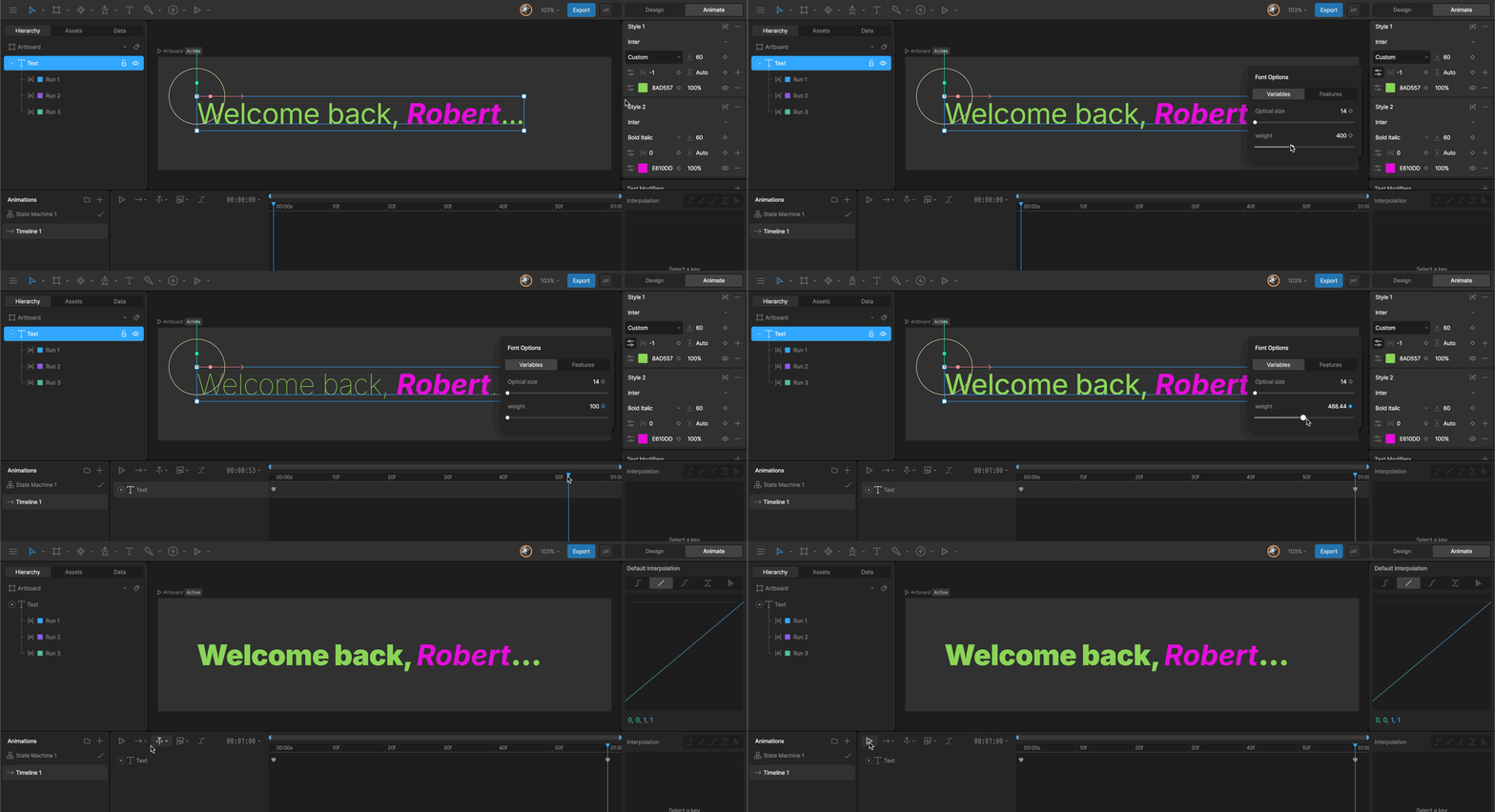
Fonts that support variable axes or OpenType features will surface an options fly-out button on the Text Style within the Inspector. Use the fly-out to access and configure the available variables and features for the selected font.
Font variables can be animated in Rive. Open the variable fly-out in [animate mode](/editor/fundamentals/design-vs-animate-mode) to key the available axes.
***
## Variables
Fonts that support variable axes or OpenType features will surface an options fly-out button on the Text Style within the Inspector. Use the fly-out to access and configure the available variables and features for the selected font.
Font variables can be animated in Rive. Open the variable fly-out in [animate mode](/editor/fundamentals/design-vs-animate-mode) to key the available axes.