> ## Documentation Index
> Fetch the complete documentation index at: https://rive-transitions-2.mintlify.site/llms.txt
> Use this file to discover all available pages before exploring further.
# Getting Started
> Adding Rive to your Unity project.
export const YouTube = ({id, timestamp}) => {
const videoSrc = timestamp ? `https://www.youtube.com/embed/${id}?start=${timestamp}` : `https://www.youtube.com/embed/${id}`;
return ;
};
New to Rive? Start with the [Rive Editor](/editor/fundamentals/overview) to create your graphics, then [export for runtime](/editor/exporting/exporting-for-runtime) when you're ready to bring them into Unity.
Create, rig, and build interactive Rive graphics in the editor.
Supported Unity versions, graphics backends, and feature support.
## Example Projects
To quickly experiment with Rive in Unity, run one of our [example projects](https://github.com/rive-app/rive-unity-examples).
## Installation
The Rive Unity package is available on the Unity Asset Store and on GitHub.
The **Unity Asset Store** has a simpler installation process and only includes the stable package releases. Installing from **GitHub** gives you access to stable releases as well as canary tags, which are updated more frequently and may include [newer/early access features](/feature-support) before they land in a stable release.
Install the package from the Unity Asset Store:
* [Rive for Unity (Asset Store)](https://assetstore.unity.com/packages/tools/gui/rive-350858)
Open Window -> Package Manager
Select My Assets
Find Rive and select Download / Import
The [rive-unity package](https://github.com/rive-app/rive-unity) is also available to install from GitHub using a git dependency.
Add it via **Window -> Package Manager** and choose **Add package from git URL...** (replace `0.0.0` with the [latest release](https://github.com/rive-app/rive-unity/releases)):
```bash theme={null}
https://github.com/rive-app/rive-unity.git?path=package#v0.0.0
```
Paste the URL with a version tag 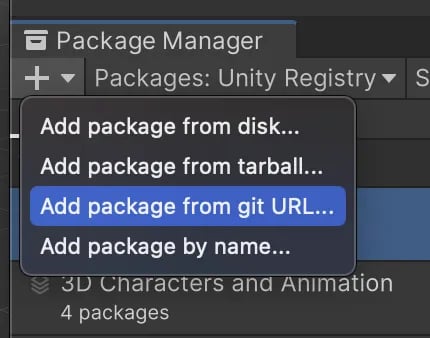 Unity can occasionally crash when upgrading the packages while the Editor is running. If you experience this, close Unity first, update the version in `Packages/manifest.json`, then reopen the project.
You can add it manually to your project's `Packages/manifest.json` (replace `0.0.0` with the [latest release](https://github.com/rive-app/rive-unity/releases)):
```json theme={null}
"app.rive.rive-unity": "https://github.com/rive-app/rive-unity.git?path=package#v0.0.0"
```
## Adding a Rive file to Unity
See our documentation on [Exporting](/editor/exporting/exporting-for-runtime) graphics for runtime.
Once you have a `.riv` file, drag it into the Unity **Project** window. Unity will import it and automatically create a **Rive Asset** you can reference from components and scripts.
On the [Marketplace](https://rive.app/marketplace), you can find Rive files that can be remixed.
## Displaying a Rive File
**Drag-and-Drop**
To display a Rive file in UI, drag it into the **Scene Hierarchy**. This creates a screen-space setup inside a uGUI Canvas.
The `com.unity.ugui` package must be installed to use these components. This is usually included by default in new Unity projects.
To display a Rive file on a mesh, drop the Rive file onto an existing GameObject with a `MeshRenderer`. This creates a **Rive Panel** and adds a **Rive Texture Renderer** component to the mesh GameObject.
**Quick Creation Menu**
Right-click in the scene hierarchy to create the following:
* `Rive > Rive Panel` - Creates a standalone panel
* `Rive > Rive Panel (Canvas)` - Creates a UI-ready panel
* `Rive > Widgets > Rive Widget` - Adds a standard Rive widget
## Next steps
How files, artboards, and state machines are represented in Unity.
Rive Panel, Rive Widget, and recommended component-based workflows.
Bind your C# scripts to your Rive graphics for UI and gameplay-driven updates.
Performance and usage considerations for Rive in Unity.
Unity can occasionally crash when upgrading the packages while the Editor is running. If you experience this, close Unity first, update the version in `Packages/manifest.json`, then reopen the project.
You can add it manually to your project's `Packages/manifest.json` (replace `0.0.0` with the [latest release](https://github.com/rive-app/rive-unity/releases)):
```json theme={null}
"app.rive.rive-unity": "https://github.com/rive-app/rive-unity.git?path=package#v0.0.0"
```
## Adding a Rive file to Unity
See our documentation on [Exporting](/editor/exporting/exporting-for-runtime) graphics for runtime.
Once you have a `.riv` file, drag it into the Unity **Project** window. Unity will import it and automatically create a **Rive Asset** you can reference from components and scripts.
On the [Marketplace](https://rive.app/marketplace), you can find Rive files that can be remixed.
## Displaying a Rive File
**Drag-and-Drop**
To display a Rive file in UI, drag it into the **Scene Hierarchy**. This creates a screen-space setup inside a uGUI Canvas.
The `com.unity.ugui` package must be installed to use these components. This is usually included by default in new Unity projects.
To display a Rive file on a mesh, drop the Rive file onto an existing GameObject with a `MeshRenderer`. This creates a **Rive Panel** and adds a **Rive Texture Renderer** component to the mesh GameObject.
**Quick Creation Menu**
Right-click in the scene hierarchy to create the following:
* `Rive > Rive Panel` - Creates a standalone panel
* `Rive > Rive Panel (Canvas)` - Creates a UI-ready panel
* `Rive > Widgets > Rive Widget` - Adds a standard Rive widget
## Next steps
How files, artboards, and state machines are represented in Unity.
Rive Panel, Rive Widget, and recommended component-based workflows.
Bind your C# scripts to your Rive graphics for UI and gameplay-driven updates.
Performance and usage considerations for Rive in Unity.