> ## Documentation Index
> Fetch the complete documentation index at: https://rive-transitions-2.mintlify.site/llms.txt
> Use this file to discover all available pages before exploring further.
# Loading Assets
> Loading and replacing assets dynamically at runtime
export const YouTube = ({id, timestamp}) => {
const videoSrc = timestamp ? `https://www.youtube.com/embed/${id}?start=${timestamp}` : `https://www.youtube.com/embed/${id}`;
return ;
};
If you want to dynamically replace images, use image data binding.
Some Rive files may contain assets that can be embedded within the actual file binary, such as font, image, or audio files. The Rive runtimes may then load these assets when the Rive file is loaded. While this makes for easy usage of the Rive files/runtimes, there may be opportunities to load these assets in or even replace them at runtime instead of embedding them in the file binary.
There are several benefits to this approach:
* Keep the `.riv` files tiny without potential bloat of larger assets
* Dynamically load an asset for any reason, such as loading an image with a smaller resolution if the `.riv` is running on a mobile device vs. an image of a larger resolution for desktop devices
* Preload assets to have available immediately when displaying your `.riv`
* Use assets already bundled with your application, such as font files
* Sharing the same asset between multiple `.riv`s
## Methods for Loading Assets
There are currently three different ways to load assets for your Rive files.
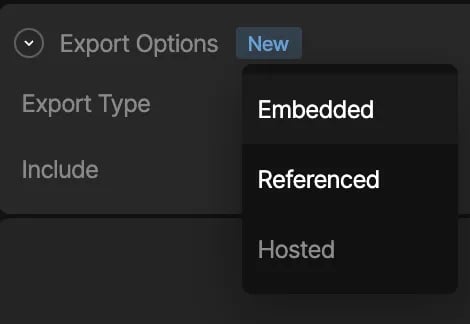
In the Rive editor select the desired asset from the **Assets** tab, and in the inspector choose the desired export option:
### Embedded Assets
In the Rive editor, static assets can be included in the `.riv` file, by choosing the *"Embedded"* export type. As stated in the beginning of this page, when the Rive file gets loaded, the runtime will implicitly attempt to load in the assets embedded in the `.riv` as well, and you don't need to concern yourself with loading any assets manually.
**Caveat:** Embedded assets may bulk up the file size, especially when it comes to fonts when using Rive Text ([Text Overview](/editor/text/text-overview)).
**Embedded is the default option.**
### Loading via Rive's CDN
In the Rive editor, you can mark an imported asset as a *"Hosted"* export type, which means that when you export the `.riv` file, the asset will not be embedded in the file binary, but will be hosted on Rive's CDN. This means that at runtime when loading in the file, the runtime will see the asset is marked as "Hosted" and load the asset in from the Rive CDN, so that you don't need to concern yourself with loading anything yourself, and the file can still remain tiny.
**Caveat:** The app will make an extra call to a Rive CDN to retrieve your asset
Hosted assets are available on Voyager and Enterprise plans. [Learn more about
our plans and pricing](https://rive.app/pricing?utm_source=docs\&utm_medium=content).
### Image CDNs
Some image CDNs allow for on-the-fly image transformations, including resizing, cropping, and automatic format conversion based on the browser's and device's capabilities. These CDNs can host your Rive image assets. Note that for these CDNs, you may need to specify the accepted formats, for example, as part of the HTTP header request:
```html theme={null}
... headers: { Accept: 'image/png,image/webp,image/jpeg,*/*', } ...
```
Please see your CDN provider's documentation for additional information.
Rive supports the following image formats: **jpeg**, **png**, and **webp**
### Referenced Assets
In the Rive editor, you can mark an imported asset as a *"Referenced"* export type, which means that when you export the `.riv` file, the asset will not be embedded in the file binary, and the responsibility of loading the asset will be handled by your application at runtime. This option enables you to dynamically load in assets via a handler API when the runtime begins loading in the `.riv` file. This option is preferable if you have a need to dynamically load in a specific asset based on any kind of app/game logic, and especially if you want to keep file size small.
All referenced assets, including the `.riv`, will be bundled as a zip file when you export your animation.
**Caveat:** You will need to provide an asset handler API when loading in Rive which should do the work of loading in an asset yourself. See Handling Assets below.
## Handling Assets
### Examples
* See the [Rive Flutter example app](https://github.com/rive-app/rive-flutter/tree/master/example).
### Using the Asset Handler API
When instantiating a `File`, add an `assetLoader` callback to the list of parameters. This callback will be called for every asset the runtime detects from the `.riv` file on load, and will be responsible for either handling the load of an asset at runtime or passing on the responsibility and giving the runtime a chance to load it otherwise.
```dart Font Asset Example theme={null}
final fontFile = await File.asset(
'assets/acqua_text_out_of_band.riv',
riveFactory: Factory.rive,
assetLoader: (asset, bytes) {
// Replace font assets that are not embedded in the rive file
if (asset is FontAsset && bytes == null) {
final urls = [
'https://cdn.rive.app/runtime/flutter/IndieFlower-Regular.ttf',
'https://cdn.rive.app/runtime/flutter/comic-neue.ttf',
'https://cdn.rive.app/runtime/flutter/inter.ttf',
'https://cdn.rive.app/runtime/flutter/inter-tight.ttf',
'https://cdn.rive.app/runtime/flutter/josefin-sans.ttf',
'https://cdn.rive.app/runtime/flutter/send-flowers.ttf',
];
// pick a random url from the list of fonts
http.get(Uri.parse(urls[Random().nextInt(urls.length)])).then((res) {
if (mounted) {
asset.decode(
Uint8List.view(res.bodyBytes.buffer),
);
setState(() {
// force rebuild in case the Rive graphic is no longer advancing
});
}
});
return true; // Tell the runtime not to load the asset automatically
} else {
// Tell the runtime to proceed with loading the asset if it exists
return false;
}
},
);
```
Your provided callback will be passed an `asset` and `bytes`.
* `asset` - Reference to a `FileAsset` object. You can grab a number of properties from this object, such as the name, asset type, and more. You'll also use this to set a new Rive specific asset for dynamically loaded content. Types: `FontAsset`, `ImageAsset`, and `AudioAsset`.
* `bytes` - Array of bytes for the asset (if it's available as an embedded asset)
**Important**: Note that the return value is a `boolean`, which is where you need to return:
* `true` if you intend on handling and loading in an asset yourself
* or `false` if you do not want to handle asset loading for that given asset yourself, and attempt to have the runtime try to load the asset
Once the `File` is disposed, the `FileAsset` will no longer be valid and would be dangerous to use.
## Additional Resources
 ### Embedded Assets
In the Rive editor, static assets can be included in the `.riv` file, by choosing the *"Embedded"* export type. As stated in the beginning of this page, when the Rive file gets loaded, the runtime will implicitly attempt to load in the assets embedded in the `.riv` as well, and you don't need to concern yourself with loading any assets manually.
**Caveat:** Embedded assets may bulk up the file size, especially when it comes to fonts when using Rive Text ([Text Overview](/editor/text/text-overview)).
### Embedded Assets
In the Rive editor, static assets can be included in the `.riv` file, by choosing the *"Embedded"* export type. As stated in the beginning of this page, when the Rive file gets loaded, the runtime will implicitly attempt to load in the assets embedded in the `.riv` as well, and you don't need to concern yourself with loading any assets manually.
**Caveat:** Embedded assets may bulk up the file size, especially when it comes to fonts when using Rive Text ([Text Overview](/editor/text/text-overview)).