> ## Documentation Index
> Fetch the complete documentation index at: https://rive-transitions-2.mintlify.site/llms.txt
> Use this file to discover all available pages before exploring further.

# Text

> ⚠️ DEPRECATED: Use Data Binding instead of direct text run manipulation at runtime

<Warning>
  **DEPRECATION NOTICE:** This entire page documents the legacy Text
  manipulation system. **For new projects:** Use <Link href="data-binding">Data Binding</Link> instead. **For existing projects:** Plan to
  migrate from direct text run manipulation to Data Binding as soon as possible.
</Warning>

For more information on designing and animating Text, please refer to the editor's text section:

<CardGroup cols={2}>
  <Card
    title="Text"
    href="/editor/text/text-overview"
    icon={
  <svg
    xmlns="http://www.w3.org/2000/svg"
    height="100%"
    fill="none"
    viewBox="0 0 16 16"
    className="size-4 text-gray-500/80 dark:text-gray-400"
    aria-hidden="true"
  >
    <path
      fill="currentColor"
      d="M7.31 7.111 2.406 5.15l4.61-1.844.328-.126a2.3 2.3 0 0 1 1.647 0l.33.126L13.93 5.15 9.024 7.112c-.55.22-1.163.22-1.712 0"
    ></path>
    <path
      stroke="currentColor"
      stroke-linecap="round"
      stroke-linejoin="round"
      d="m2.405 10.911 4.906 1.963c.55.22 1.162.22 1.712 0l4.906-1.963M2.405 8.031 7.31 9.992c.55.22 1.162.22 1.712 0l4.906-1.963M2.405 5.15 7.31 7.111c.55.22 1.162.22 1.712 0l4.906-1.962-4.61-1.844-.329-.126a2.3 2.3 0 0 0-1.647 0l-.329.126z"
    ></path>
  </svg>
}
  >
    Information on designing and animating Text
  </Card>
</CardGroup>

## Read/Update Text Runs at Runtime

<Warning>
  **⚠️ LEGACY CONTENT WARNING:** The following sections document the deprecated
  Text manipulation system. **This content is provided for legacy support
  only.** New implementations should use <Link href="data-binding">Data Binding</Link>.
</Warning>

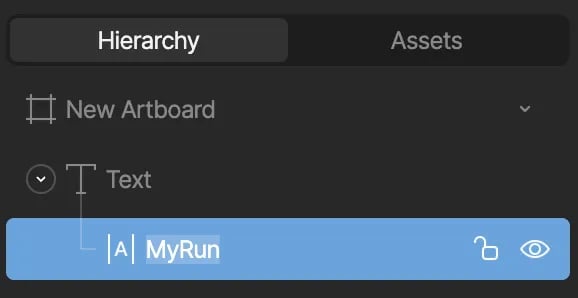
If you intend to update a **text run** at runtime it's important to manually enter a *unique name* for the run in the editor:

<img src="https://mintcdn.com/rive-transitions-2/RjFpn8Nd3LRpJVNy/images/runtimes/3114789e-e298-458e-8d9b-00ca71db658d.webp?fit=max&auto=format&n=RjFpn8Nd3LRpJVNy&q=85&s=c327c2e802817e0442e79e29c0387ab6" alt="Image" width="578" height="298" data-path="images/runtimes/3114789e-e298-458e-8d9b-00ca71db658d.webp" />

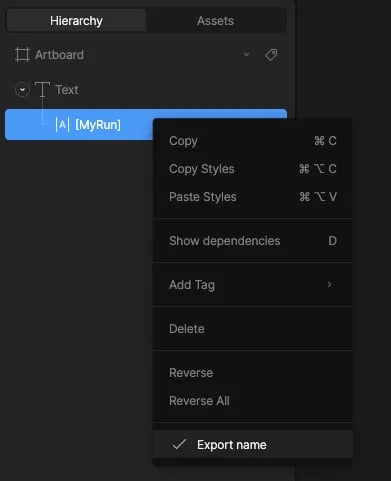
And then export the name: **right-click** and select **Export name**

<img src="https://mintcdn.com/rive-transitions-2/RjFpn8Nd3LRpJVNy/images/runtimes/b729291c-f915-4ce0-b2fa-f6d6a742141c.webp?fit=max&auto=format&n=RjFpn8Nd3LRpJVNy&q=85&s=a09b6ab51797e29f1448a0d87ed397f6" alt="Image" width="391" height="481" data-path="images/runtimes/b729291c-f915-4ce0-b2fa-f6d6a742141c.webp" />

You can identify an exported component if it's surrounded by square brackets. This makes it possible for the run to be "discoverable" at runtime by its name. For more information, see [Exporting for Runtime](/editor/exporting/exporting-for-runtime).

<Warning>
  **If the name is not set manually in the editor the name will not be part of
  the exported *.riv* (to reduce file size).**
</Warning>

<Note>
  Text runs can also be updated on components at runtime, see [Read/Update
  Nested Text Runs at Runtime](#read-update-nested-text-runs-at-runtime) below.
</Note>

## Examples

* [Updating Text at Runtime - Localization example](https://codesandbox.io/p/sandbox/rive-text-js-x9jn5w)

## High-level API usage

**Reading Text**

To read a given text run text value at any given time, reference the `.getTextRunValue()` API on the Rive instance:

```javascript theme={null}
public getTextRunValue(textRunName: string): string | undefined
```

Supply the text run name, and you'll have the Rive text run value returned, or `undefined` if the text run could not be queried.

**Setting Text**

To set a given text run value at any given time, reference the `.setTextRunValue()` API on the Rive instance:

```javascript theme={null}
public setTextRunValue(textRunName: string, textRunValue: string): void
```

Supply the text run name and a second parameter, `textValue`, with a String value that you want to set the new text value for if the text run can be successfully queried on the active artboard.

### Example Usage

```javascript theme={null}
import {Rive} from '@rive-app/canvas'

const r = new Rive({
src: "my-rive-file.riv"
artboard: "my-artboard-name",
autoplay: true,
stateMachines: "State Machine 1",
onLoad: () => {
    console.log("My design-time text is, ", r.getTextRunValue("MyRun"));
    r.setTextRunValue("MyRun", "New text value");
},
})
```

## Low-level API usage

Get a reference to the Rive `Artboard`, find a text run by a given **name**, and get/update the text value property.

```javascript theme={null}
import RiveCanvas from '@rive-app/canvas-advanced';


const bytes = await (
await fetch(new Request('./my-rive-file.riv'))
).arrayBuffer();
const myRiveFile = await rive.load(new Uint8Array(bytes));

const artboard = myRiveFile.defaultArtboard();
const textRun = artboard.textRun("MyRun"); // Query by the text run name
console.log(`My design-time text is ${textRun.text}`);
textRun.text = "Hello JS Runtime!";

...
```

## Read/Update Nested Text Runs at Runtime

<Warning>
  **⚠️ DEPRECATED FEATURE:** Nested Text Runs are part of the legacy Text
  manipulation system. **Use Data Binding instead** for controlling component
  text properties at runtime.
</Warning>

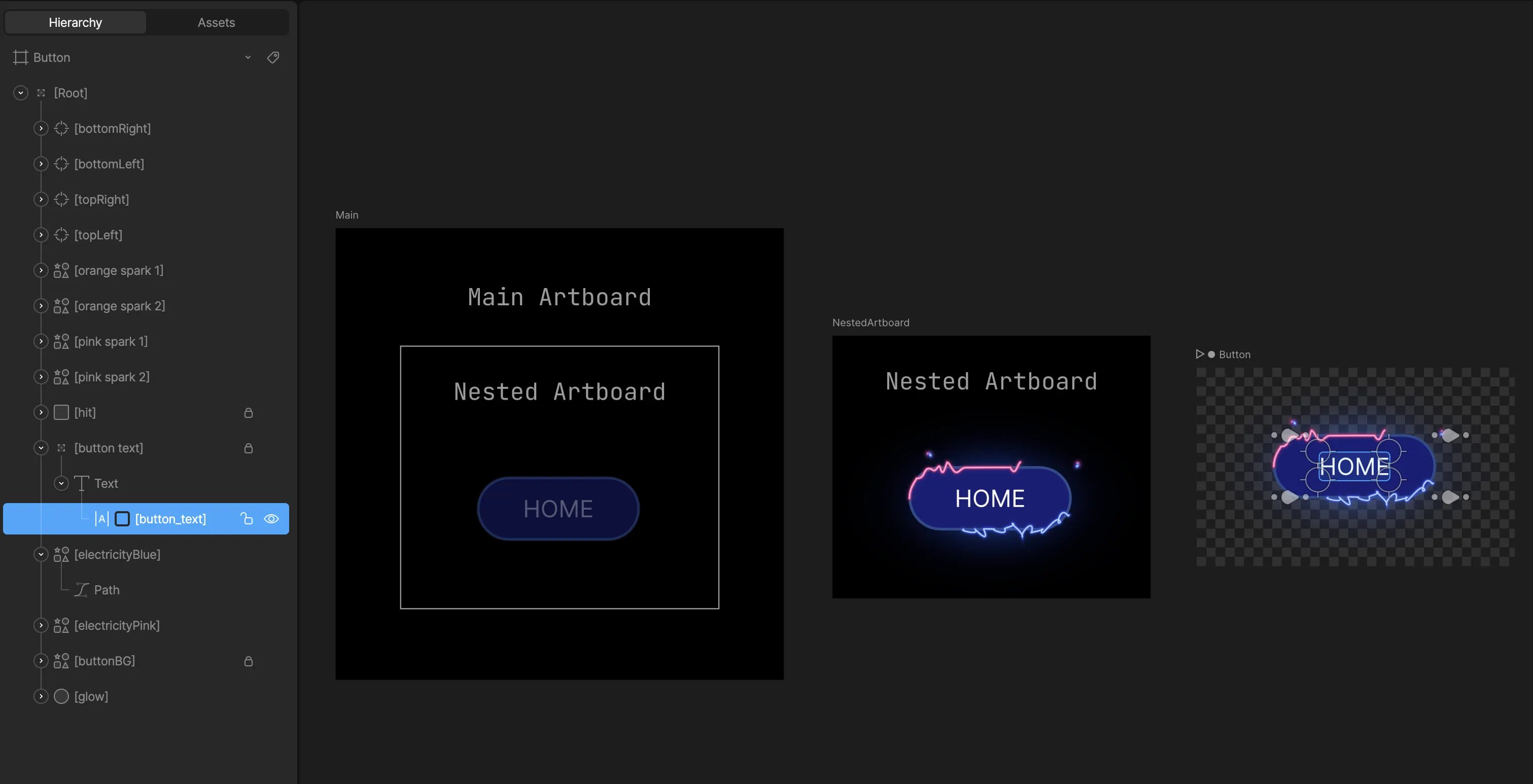
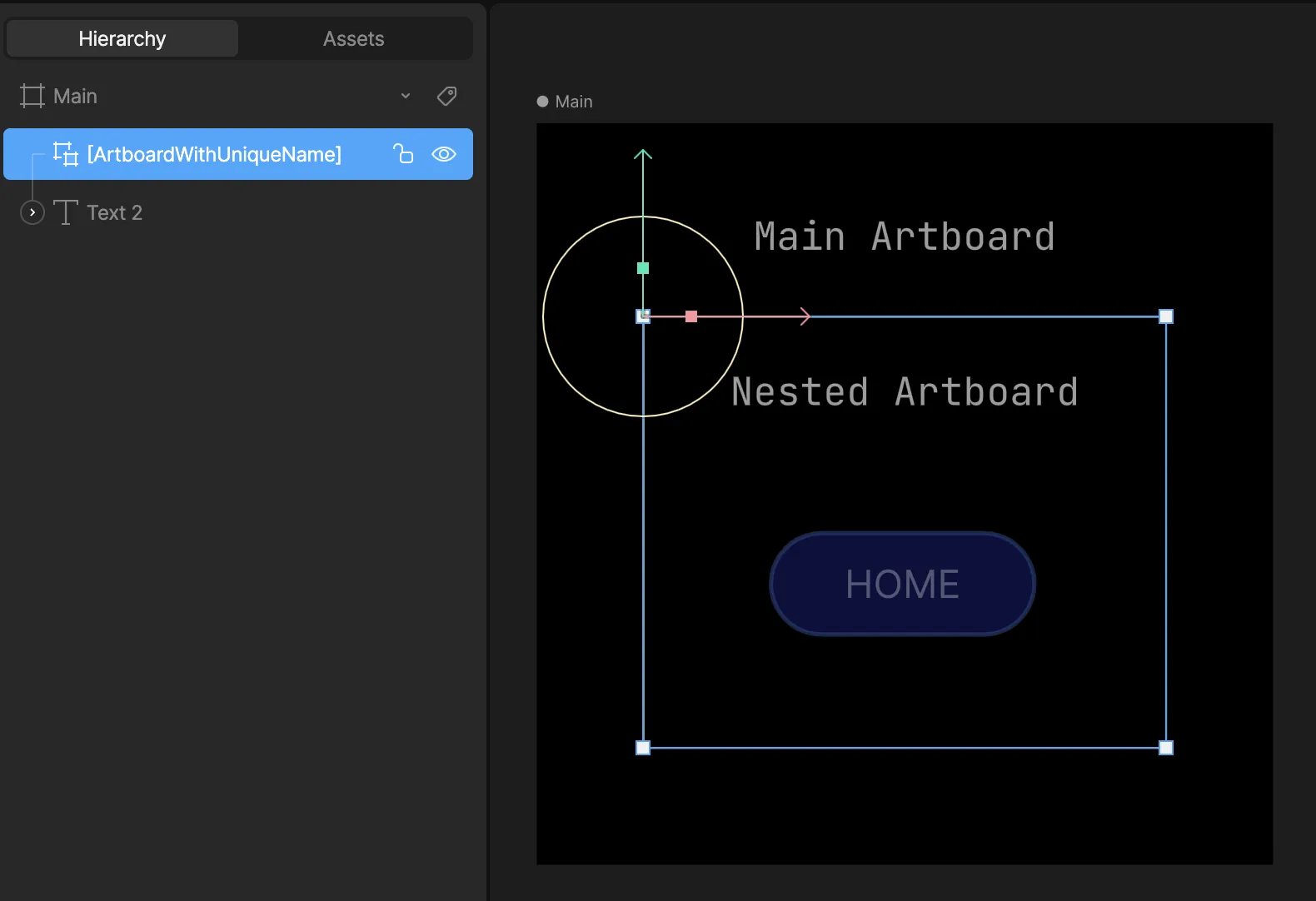
It's possible to set nested text runs at runtime—text that is not on the main artboard but on a [Component](/editor/fundamentals/components). To set a nested text run, you'll need to take note of the path where the input exists at an artboard level.

For example, to get/set the text run named **button\_text** on the **Button** artboard, you need to provide the correct path.

<img src="https://mintcdn.com/rive-transitions-2/RjFpn8Nd3LRpJVNy/images/runtimes/51848b07-5a82-4fc9-ab3f-0505336fcce3.webp?fit=max&auto=format&n=RjFpn8Nd3LRpJVNy&q=85&s=0085fafa54728a4dee1a898c88c54bfa" alt="Setting Nested Text Runs " width="3022" height="1546" data-path="images/runtimes/51848b07-5a82-4fc9-ab3f-0505336fcce3.webp" />

*Setting Nested Text Runs*

The artboard names here are:

* **Main** -> **NestedArtboard** -> **Button**

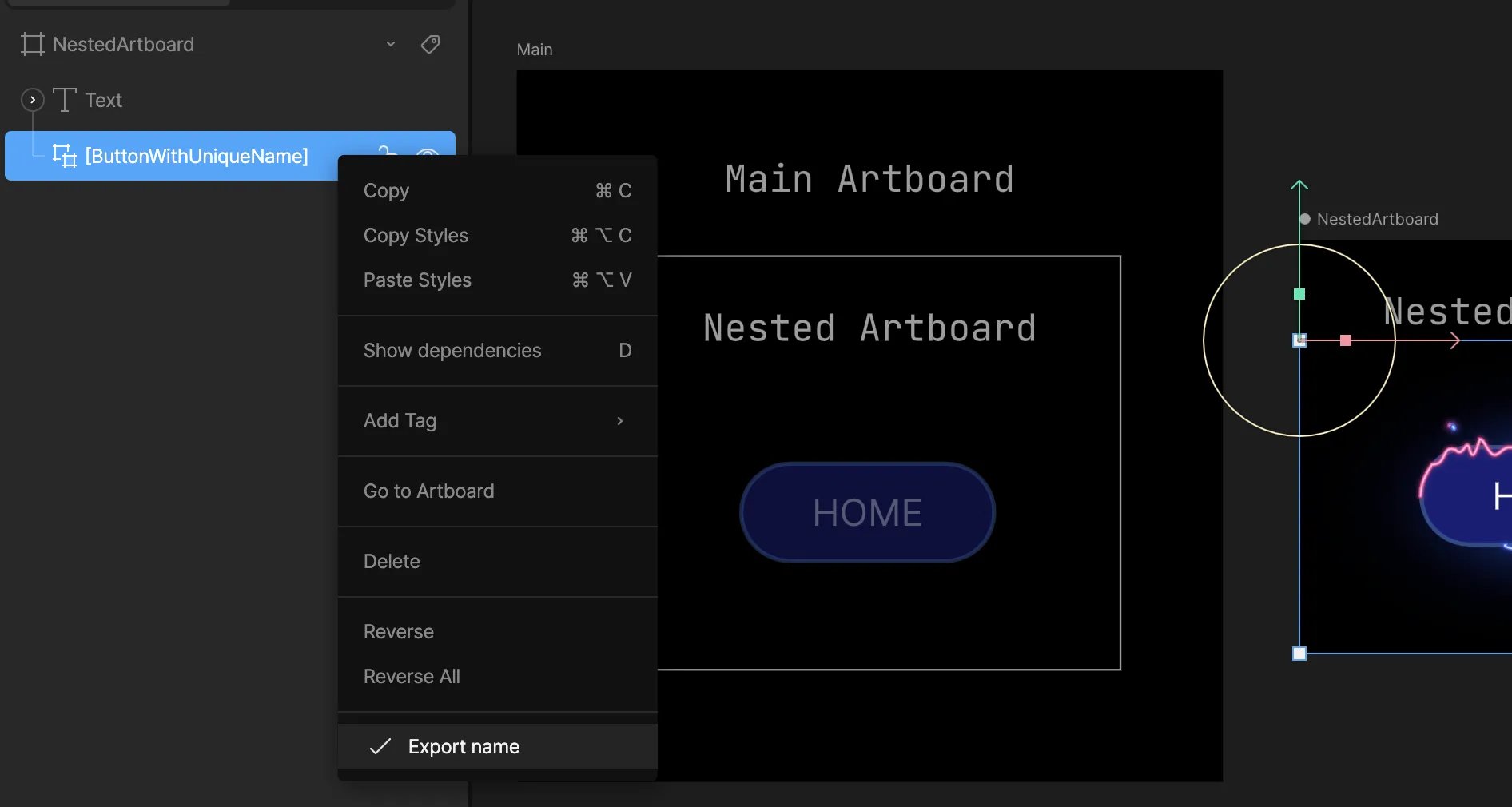
<img src="https://mintcdn.com/rive-transitions-2/RjFpn8Nd3LRpJVNy/images/runtimes/fc5b5be2-546f-44d0-ad85-f7a8da64973b.webp?fit=max&auto=format&n=RjFpn8Nd3LRpJVNy&q=85&s=ca8b70257e6384bf1af76a62b12f4423" alt="Image" width="1580" height="1082" data-path="images/runtimes/fc5b5be2-546f-44d0-ad85-f7a8da64973b.webp" />

However, the path is determined based on the names set in the hierarchy:

* **ArtboardWithUniqueName** -> **ButtonWithUniqueName**

The path is then: `ArtboardWithUniqueName/ButtonWithUniqueName`

<Warning>
  Be sure to mark the components and text runs as exported.

  <br />

  <img src="https://mintcdn.com/rive-transitions-2/RjFpn8Nd3LRpJVNy/images/runtimes/618066cd-2909-420e-b94b-d3eb920fe389.webp?fit=max&auto=format&n=RjFpn8Nd3LRpJVNy&q=85&s=4ca262a91e8cb094057a1aa11c600a8b" alt="Export component
  name" width="1892" height="1010" data-path="images/runtimes/618066cd-2909-420e-b94b-d3eb920fe389.webp" /> *Export
  component name*
</Warning>

<Warning>
  Do not use "/" in the name for your components, as that will break the search
  functionality at runtime.
</Warning>

## Examples

* [Updating Nested Text at Runtime - Localization example](https://codesandbox.io/p/sandbox/rive-text-nested-js-pzs9lf)

### High-level API usage

**Reading Text**

To read a given text run text value at a specific path, reference the `.getTextRunValueAtPath()` API on the Rive instance:

```javascript theme={null}
public getTextRunValueAtPath(textRunName: string, path: string): string | undefined
```

Supply the text run name and the path where it is located, and you'll have the Rive text run value returned, or `undefined` if the text run could not be queried.

**Setting Text**

To set a given text run value at a specific path, reference the `.setTextRunValueAtPath()` API on the Rive instance:

```javascript theme={null}
public setTextRunValueAtPath(textRunName: string, textRunValue: string, path: string): void
```

Supply the `textRunName`, the new `textValue`, and the `path` where the run is located at a component instance level.

### Example Usage

```javascript theme={null}
import {Rive} from '@rive-app/canvas'

const r = new Rive({
src: "my-rive-file.riv"
artboard: "my-artboard-name",
autoplay: true,
stateMachines: "State Machine 1",
onLoad: () => {
    console.log("My design-time text is, ", r.getTextRunValueAtPath("MyRun", "path/to/run"));
    r.setTextRunValueAtPath("MyRun", "New text value", "path/to/run");
},
})
```

### Semantics for Accessibility

Rive now supports screen readers through semantics.

See the [Semantics](/editor/accessibility/semantics) documentation for current guidance.

The following code snippets provide guidance on how to add semantic labels to your Rive animations.

#### Adding ARIA Label

At a minimum - if it is important to convey the text value displayed in the Rive animation to all users, add an `aria-label` to the `<canvas>` element with the text value from the animation. Screen readers may read this label out immediately as it parses out the DOM contents. You'll also want to add `role="img"` to the `<canvas>` element as well.

```javascript theme={null}
<canvas
    id="rive-canvas"
    width={500}
    height={500}
    role="img"
    aria-label="Hello friend, welcome to my page"
></canvas>
```

#### Adding ARIA Live Region

While ARIA labels are a direct method to manage a textual label for screen readers to read out as it parses web content, using an ARIA live region allows you a way to control when screen readers read out dynamic text content.

Live regions are useful in cases where the text content in your Rive graphic becomes visible or changes on a particular state in a state machine, and you want screen readers to pick up on text changes. Another use case is when you only want screen readers to read your Rive text content when the `<canvas>` is scrolled into view.

Read more on ARIA live regions [here](https://developer.mozilla.org/en-US/docs/Web/Accessibility/ARIA/ARIA_Live_Regions).

#### Example: Rating Graphic

<Note>
  To try this example out, visit this [CodeSandbox link](https://codesandbox.io/p/sandbox/rive-rating-ally-example-ptydr8)
</Note>

Imagine you're displaying an interactive Rive graphic that allows users to choose a rating from 1-5 stars. Users clicking on the different stars can visually see the state machine in action with animations to see what star they click, but screen readers may need a way to announce what selection was chosen as other users navigate the canvas with keyboard controls, for example.

The HTML for this might look like the following:

```javascript theme={null}
<canvas
role="img"
tabindex="0"
aria-describedby="rating-animation-live"
id="canvas"
></canvas>
<p id="rating-animation-live" class="sr-only" aria-live="assertive">
An interactive rating simulation. Use the left and right arrow keys to
select a rating
</p>
```

Note that the `<canvas>` element has an `aria-describedby` attribute whose value matches the `id` of the `<p>` below it, `#rating-animation-live`. This allows the `<p>` block content to describe the `<canvas>` element. And similar to using `aria-label`, we have to add the `role="img"` attribute to the canvas as well. The `aria-live="assertive"` attribute describes how to interrupt the screen reader's flow of reading content based on when the content within this `<p>` changes.

Let's take a look at what the JS might look like using the Rive Web (JS) runtime:

```javascript theme={null}
const rive = require("@rive-app/canvas");
const dynamicTextEl = document.getElementById("rating-animation-live");

const r = new rive.Rive({
src: "rating.riv",
canvas: document.getElementById("canvas"),
stateMachines: "State Machine 1",
autoplay: true,
onLoad: () => {
    r.setTextRunValue("RatingRun", "0");
    r.resizeDrawingSurfaceToCanvas();
    // See CodeSandbox link above for further functionality
},
onStateChange: (e) => {
    const name = e.data[0];
    const ratingStr = name.charAt(0);
    const ratingNum = parseInt(ratingStr);
    if (!isNaN(ratingNum)) {
    const ratingString = name
        .split("_")
        .reduce((acc, temp) => {
        return (acc += ` ${temp}`);
        }, "")
        .trim();
    r.setTextRunValue("RatingRun", ratingStr);

    dynamicTextEl.innerHTML = `Rating: ${ratingString}`;
    }
}
});
```

In the above snippet, we've created an instance of Rive, and as the state changes in the state machine, we're dynamically updating the contents of the live region (represented by `dynamicTextEl`) with the string rating. Due to the live region having the property of `aria-live="assertive"`, screen readers should read off the new dynamic text content.

### Additional Resources:

* [Accessible web animations: ARIA live regions](https://rive.app/blog/accesible-web-animations-aria-live-regions?utm_source=docs\&utm_medium=content)